FMOD Engine User Manual 2.03
- Welcome to the FMOD Engine
- Core API Key Concepts
- Core API Getting Started
- Core API Loading and Playing Sounds
- Core API Spatializing Sounds
- Core API Mixing and Routing
- Core API Using DSP Effects
- Core API Effect Reference
- Core API Managing Resources
- Core API Advanced Topics
- Detecting Audio Devices
- Extracting PCM Data from a Sound
- Linking Plug-ins
- Recording
- Using Output Plug-ins
- 3D Polygon-based Geometry Occlusion
- Virtual 3D Reverb System
- Transitioning from FMOD Ex
- Studio API Versus FMOD Designer API
- FMOD Studio's Core API Versus FMOD Ex's Core API
- No more 'recommended startup sequence'
- Added new DSP effects
- New file format support
- Dolby Atmos support
- New DSP mixing engine
- Added plug-in info helper function
- Added background suspension support
- ChannelGroups volume and panning are now DSP based, rather than reaching down to the Channels of the child ChannelGroups.
- Added additional output streams
- Added Sound helper function
- Added sample volume control
- Added UTF8 support
- Added concept of a 'fader' DSP per Channel and ChannelGroup
- New DSPConnection types supported
- New DSP parameter types
- FMOD_HARDWARE support
- Channels and ChannelGroups have been merged into 'ChannelControl'
- Converting FMOD Reverb parameters
- System::set3DSpeakerPosition renamed
- FMOD_CHANNEL_FREE / FMOD_CHANNEL_REUSE removed. Default ChannelGroup now passed to playSound if needed
- CDROM / CDDA support removed
- System::getSpectrum and System::getWaveData removed
- 'W' function wide char support removed
- System::setReverbAmbientProperties removed
- System::getDSPClock removed
- getMemoryInfo functions have been removed from all classes
- Sound::setVariations and Sound::getVariations have been removed
- Sound::setSubSoundSentence has been removed
- setDelay and clock functions now use 64bit 'long long' type rather than than 32bit hi and 32bit low part parameters.
- Channel::setSpeakerMix, Channel::setSpeakerLevels, Channel::setInputChannelMix, Channel::getPan, Channel::getSpeakerMix and Channel::getSpeakerLevels removed
- DSPConnection::setLevels/getLevels have been removed.
- Channel::set3DPanLevel misnomer renamed
- 'override' functions removed from ChannelGroup class
- System::addDSP removed from the System API
- DSP::remove removed from the DSP API
- Core API Reference
- Studio API Getting Started
- Studio API Guide
- Studio API 3D Events
- Studio API Threads
- Studio API Reference
- Platform Details
- Plug-in DSP API Guide
- Plug-in API Reference
- FSBank API Reference
- Troubleshooting
- Glossary
10. Core API Advanced Topics
10.1 Detecting Audio Devices
The Core API has automatic sound card detection and recovery during playback. If a new device is inserted after initialization, the FMOD Engine will seamlessly jump to it, assuming it is the higher priority device. An example of this would be a USB headset being plugged in.
If the device that is being played on is removed, the FMOD Engine automatically jumps to the device considered next most important (e.g.: On Windows, it would be the new 'default' device). If a new device is inserted, then removed, the FMOD Engine ends up on the device it was originally playing on before the new device was inserted.
You can override the sound card detection behavior with a custom callback. This is the FMOD_SYSTEM_CALLBACK_DEVICELISTCHANGED callback.
10.2 Extracting PCM Data from a Sound
The following demonstrates how to extract PCM data from a Sound and place it into a buffer using Sound::readData. This technique is sometimes used to draw a vizualisation of a waveform, to send the data to another piece of software on the same machine, or to send the data over a network.
FMOD_OPENONLY must be used for the mode argument of System::createSound to ensure that file handle remains open for reading, as other modes will automatically read the entire file's data and close the file handle. Additionally, Sound::seekData can be used to seek within the Sound's data before reading into a buffer.
FMOD::Sound *sound;
unsigned int length;
char *buffer;

system->createSound("drumloop.wav", FMOD_OPENONLY, nullptr, &sound);
sound->getLength(&length, FMOD_TIMEUNIT_RAWBYTES);

buffer = new char[length];
sound->readData(buffer, length, nullptr);

delete[] buffer;
FMOD_SOUND *sound;
unsigned int length;
char *buffer;

FMOD_System_CreateSound(system, "drumloop.wav", FMOD_OPENONLY, 0, &sound);
FMOD_Sound_GetLength(sound, &length, FMOD_TIMEUNIT_RAWBYTES);

buffer = (char *)malloc(length);
FMOD_Sound_ReadData(sound, (void *)buffer, length, 0);

free(buffer);
FMOD.Sound sound;
uint length;
byte[] buffer;

system.createSound("drumloop.wav", FMOD.MODE.OPENONLY, out sound);
sound.getLength(out length, FMOD.TIMEUNIT.RAWBYTES);

buffer = new byte[(int)length];
sound.readData(buffer);
var sound = {};
var length = {};
var buffer = {};

system.createSound("drumloop.wav", FMOD.OPENONLY, null, sound);
sound = sound.val;

sound.getLength(length, FMOD.TIMEUNIT_RAWBYTES);
length = length.val;

sound.readData(buffer, length, null);
buffer = buffer.val;
See Also: FMOD_TIMEUNIT, FMOD_MODE, Sound::getLength, System::createSound. Sound::seekData
10.3 Linking Plug-ins
You can extend the functionality of the FMOD Engine through the use of plug-ins. Each plug-in type (codec, DSP and output) has its own API you can use. Whether you have developed the plug-in yourself or you are using one from a third party, there are two ways to integrate it into FMOD.
10.3.1 Static
When the plug-in is available to you as source code, you can hook it up to FMOD by including the source file and using one of the plug-in registration APIs System::registerCodec, System::registerDSP or System::registerOutput. Each of these functions accepts the relevant description structure that provides the functionality of the plug-in. By convention, plug-in developers create a function that returns this description structure for you. For example, FMOD_AudioGaming_AudioMotors_GetDSPDescription is the name used by one of our partner plug-ins (it follows the form of "FMOD_[CompanyName]_[ProductName]_Get[PluginType]Description").
Alternatively, if you don't have source code, but you do have a static library (such as .lib or .a) it's almost the same process. Link the static library with your project, then call the description function passing the value into the registration function.
Codec Example
FMOD_RESULT result;
unsigned int handle;
FMOD::Sound* sound;

result = system->registerCodec(FMOD_Example_GetCodecDescription(), &handle);

// example.xyz is a file encoded with the codec's corresponding encoder
result = system->createSound("example.xyz", FMOD_DEFAULT, 0, &sound);
FMOD_RESULT result;
unsigned int handle;
FMOD_SOUND* sound;

result = FMOD_System_RegisterCodec(system, FMOD_Example_GetCodecDescription(), &handle, 0);

// example.xyz is a file encoded with the codec's corresponding encoder
result = FMOD_System_CreateSound(system, "example.xyz", FMOD_DEFAULT, 0, &sound);
var result = {};
var handle = {};
var sound = {};
var outval = {};

result = system.registerCodec(FMOD_Example_GetCodecDescription(), outval, 0);
handle = outval.val;

// example.xyz is a file encoded with the codec's corresponding encoder
result = system.createSound("example.xyz", FMOD.DEFAULT, 0, outval);
sound = outval.val;
Currently not supported for C#.
Output Example
FMOD_RESULT result;
unsigned int handle;

result = system->registerOutput(FMOD_Example_GetOutputDescription(), &handle);
result = system->setOutputByPlugin(handle);
FMOD_RESULT result;
unsigned int handle;

result = FMOD_System_RegisterOutput(system, FMOD_Example_GetCodecDescription(), &handle);
result = FMOD_System_SetOutputByPlugin(system, handle);
var result = {};
var handle = {};
var outval = {};

result = system.registerOutput(FMOD_Example_GetOutputDescription(), outval, 0);
handle = outval.val;
result = system.setOutputByPlugin(handle);
Currently not supported for C#.
DSP Example
FMOD::Channel* channel;
FMOD::DSP* dsp;
FMOD_RESULT result;
unsigned int handle;

result = system->registerDSP(FMOD_Example_GetDSPDescription(), &handle);
result = system->playSound(sound, 0, false, &channel);
result = system->createDSPByPlugin(handle, &dsp);
result = channel->addDSP(0, dsp);
FMOD_CHANNEL* channel;
FMOD_DSP* dsp;
FMOD_RESULT result;
unsigned int handle;

result = FMOD_System_RegisterDSP(system, FMOD_Example_GetDSPDescription(), &handle);
result = FMOD_System_PlaySound(system, sound, 0, false, &channel);
result = FMOD_System_CreateDSPByPlugin(system, handle, &dsp);
result = FMOD_Channel_AddDSP(channel, 0, dsp);
var result = {};
var handle = {};
var dsp = {};
var channel = {};
var outval = {};

result = system.registerDSP(FMOD_Example_GetDSPDescription(), outval);
handle = outval.val;
result = system.playSound(sound, 0, false, outval);
channel = outval.val;
result = system.createDSPByPlugin(handle, outval);
dsp = outval.val;
result = channel.addDSP(0, dsp);
Currently not supported for C#.
10.3.2 Dynamic
Another way plug-in code is distributed is via a prebuilt dynamic library (such as .so, .dll or .dylib). These are even easier to integrate with FMOD than static libraries.
First, ensure the plug-in file is in the working directory of your application. This is often the same location as the application executable. Then, in your code call System::loadPlugin, passing in the name of the library.
That's all there is to it. Under the hood, the FMOD Engine will open the library and search for well known functions similar to the description functions mentioned above. Once found, the plug-in is registered and ready for use.
Codec Example
FMOD_RESULT result;
unsigned int handle;
FMOD::Sound* sound;

result = system->loadPlugin("example_codec.dll", &handle);

// example.xyz is a file encoded with the codec's corresponding encoder
result = system->createSound("example.xyz", FMOD_DEFAULT, 0, &sound);
FMOD_RESULT result;
unsigned int handle;
FMOD_SOUND* sound;

result = FMOD_System_LoadPlugin(system, "example_codec.dll", &handle, 0);

// example.xyz is a file encoded with the codec's corresponding encoder
result = FMOD_System_CreateSound(system, "example.xyz", FMOD_DEFAULT, 0, &sound);
FMOD.Result result;
uint handle;
FMOD.Sound sound;

result = system.loadPlugin("example_codec.dll", out handle);

// example.xyz is a file encoded with the codec's corresponding encoder
result = system.createSound("example.xyz", FMOD.MODE.DEFAULT, 0, out sound);
Currently not supported for JavaScript.
Output Example
FMOD_RESULT result;
unsigned int handle;

result = system->loadPlugin("example_output.dll", &handle);
result = system->setOutputByPlugin(handle);
FMOD_RESULT result;
unsigned int handle;

result = FMOD_System_LoadPlugin(system, "example_output.dll", &handle, 0);
result = FMOD_System_SetOutputByPlugin(system, handle);
FMOD.Result result;
uint handle;

result = system.loadPlugin("example_output.dll", out handle);
result = system.setOutputByPlugin(handle);
Currently not supported for JavaScript.
DSP Example
FMOD::Channel* channel;
FMOD::DSP* dsp;
FMOD_RESULT result;
unsigned int handle;

result = system->loadPlugin("example_dsp.dll", &handle);
result = system->playSound(sound, 0, false, &channel);
result = system->createDSPByPlugin(handle, &dsp);
result = channel->addDSP(0, dsp);
FMOD_CHANNEL* channel;
FMOD_DSP* dsp;
FMOD_RESULT result;
unsigned int handle;

result = FMOD_System_LoadPlugin(system, "example_dsp.dll", &handle, 0);
result = FMOD_System_PlaySound(system, sound, 0, false, &channel);
result = FMOD_System_CreateDSPByPlugin(system, handle, &dsp);
result = FMOD_Channel_AddDSP(channel, 0, dsp);
FMOD.Channel channel;
FMOD.DSP dsp;
FMOD_RESULT result;
uint handle;

result = system.loadPlugin("example_dsp.dll", out handle);
result = system.playSound(sound, 0, false, out channel);
result = system.createDSPByPlugin(handle, out dsp);
result = channel.addDSP(0, dsp);
Currently not supported for JavaScript.
10.4 Recording
The Core API has the ability to record directly from an input into a Sound object. This Sound can then be played back after it has been recorded, or the raw data can be retrieved with Sound::lock and Sound::unlock functions.
The Sound can also be played while it is recording, to allow realtime effects. A simple technique to achieve this is to start recording, then wait a small amount of time (for example, 50 ms), then play the Sound. This keeps the play cursor just behind the record cursor. For information on how to do this and an example of source code, see the "record" example in the /api/core/examples/bin folder of the FMOD Engine distribution.
10.5 Using Output Plug-ins
The Core API has support for user-created output plug-ins. A developer can create a plug-in to take FMOD audio output to a custom target. This could be a hardware device, or a non standard file/memory/network based system.
An output mode can run in real-time, or non real-time which allows the developer to run FMOD's mixer/streamer/system at faster or slower than real-time rates.
Plug-ins can be created inline with the application, or compiled as a stand-alone dynamic library (ie .dll or .so)
Unlike DSP and instrument plug-ins, output plug-ins cannot be used in conjunction with FMOD Studio.
See System::registerOutput documentation for more.
10.6 3D Polygon-based Geometry Occlusion
The Core API supports the supply of polygon mesh data that can be processed in real time to create the effect of occlusion in a 3D world. In real world terms, you can stop sounds from traveling through walls, or even confine reverb inside a geometric volume so that it doesn't leak out into other areas.
To use the FMOD Geometry Engine, create a mesh object with System::createGeometry. Then, add polygons to each mesh with Geometry::addPolygon. Each object can be translated, rotated and scaled to fit your environment.
10.7 Virtual 3D Reverb System
It is common for environments to exhibit different reverberation characteristics in different locations. Ideally as the listener moves throughout the virtual environment, the sound of the reverberation should change accordingly. This change in reverberation properties can be modeled in FMOD Studio by using the built in Reverb3D API.
10.7.1 3D Reverbs
The 3D reverb system works by using the main built-in system I3DL2 reverb, and allows you to place multiple virtual reverb spheres within the 3D world. Each reverb sphere defines:
- Its position within the 3D world
- The area, or sphere of influence affected by the reverb (with minimum and maximum distances)
- The reverberation properties of the area
At runtime, the FMOD Engine interpolates (or morphs) between the characteristics of 3D reverbs according to the listener's proximity and the position and overlap of the reverbs. This method allows the FMOD Engine to use a single reverb DSP unit to provide a dynamic reverberation within the 3D world. This process is illustrated in the image below.
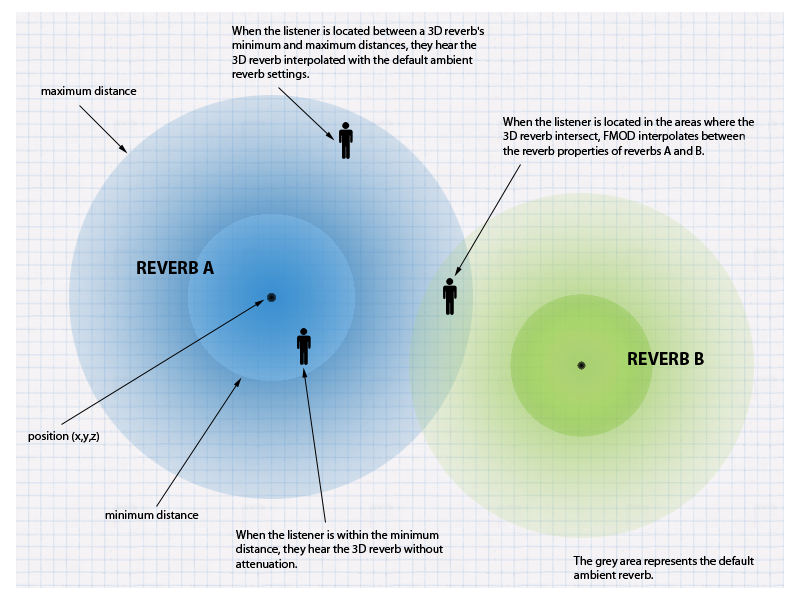
When the listener is within the sphere of effect of one or more 3D reverbs, the listener hears a weighted combination of the affecting reverbs. When the listener is outside the coverage of all 3D reverbs, the reverb is not applied.
Because this method requires only one reverb DSP unit regardless of how many virtual reverb spheres are created, there is no additional CPU cost for creating additional reverb spheres.
By default, 2D sounds share this same reverb DSP instance. To avoid 2D sounds having reverb, use ChannelControl::setReverbProperties and set wet = 0, or shift the 2D Sounds to a different reverb DSP instance, using the same function. Adding a second reverb DSP unit for this purpose will incur a small CPU and memory hit.
The following is an example of using the call System::createReverb3D, then setting the characteristics of the reverb using Reverb3D::setProperties.
FMOD::Reverb *reverb;
result = system->createReverb3D(&reverb);
FMOD_REVERB_PROPERTIES prop2 = FMOD_PRESET_CONCERTHALL;
reverb->setProperties(&prop2);
In order for a reverb to exhibit 3D properties, it is necessary to set its 3D attributes. The method Reverb3D::set3DAttributes allows you to set a reverb's origin position, as well as the area of coverage using the minimum distance and maximum distance.
FMOD_VECTOR pos = { -10.0f, 0.0f, 0.0f };
float mindist = 10.0f;
float maxdist = 20.0f;
reverb->set3DAttributes(&pos, mindist, maxdist);
As the 3D reverb uses the position of the listener in its weighting calculation, you also need to ensure that the location of the listener is set using System::set3dListenerAttributes.
FMOD_VECTOR  listenerpos  = { 0.0f, 0.0f, -1.0f };
system->set3DListenerAttributes(0, &listenerpos, 0, 0, 0);
This is all that is needed to get virtual 3d reverb zones to work. From this point onwards, based on the listener position, reverb presets should morph into each other if they overlap, and attenuate based on the listener's distance from the 3D reverb sphere's center.
10.7.2 Using Multiple Reverbs
The interpolation of 3D reverbs is only an estimation of how the multiple reverberations within the environment may sound. In some situations, greater realism is required, and so multiple styles of reverberations within a single environment must be modeled. For example, imagine a large church hall with a tunnel down into the catacombs. The reverb applied to the player's footsteps within the church hall (such as FMOD_PRESET_STONEROOM) could be quite different to that of the monster sounds emitting from the tunnel (which may be applied with both FMOD_PRESET_SEWERPIPE and FMOD_PRESET_STONEROOM). To handle this situation, multiple instances of the reverb DSP are required. As many as four instances of the reverb DSP can be added to the FMOD DSP graph, though each instance incurs a cost of more CPU time and memory usage.
FMOD Studio allows a sound designer to design their own reverbs, add them to group buses, and use sends and mixer snapshots to control the reverb mix. This section, however, describes how to use the Core API to add reverbs, query an instance's reverb properties, and control the wet/dry mix of each reverb instance on a per-channel basis.
Should you want to model multiple reverbs types within an environment without the extra resource expense of multiple reverb effects, use the method described in the 3D Reverbs section of this chapter instead, as it covers using automated 3D reverb zones to simulate reverb for different environments using only a single reverb instance.
Below is an example of using System::setReverbProperties to set up four different reverb effects. You do not need to explicitly create the extra reverb instance DSP objects, as the FMOD Engine creates them and connects them to the DSP graph when you reference them.
FMOD_REVERB_PROPERTIES prop1 = FMOD_PRESET_HALLWAY;
FMOD_REVERB_PROPERTIES prop2 = FMOD_PRESET_SEWERPIPE;
FMOD_REVERB_PROPERTIES prop3 = FMOD_PRESET_PARKINGLOT;
FMOD_REVERB_PROPERTIES prop4 = FMOD_PRESET_CONCERTHALL;
The example defines four different FMOD_REVERB_PROPERTIES structures using presets. You can define your own reverb settings, but presets make it easier to get some common reverbs working. For more information about reverb presets, see the FMOD_REVERB_PRESETS section of the Core API Reference chapter.
Once the reverb effects are set up, the 'instance' parameter may be used to set which reverb DSP unit should be used for each preset, while calling the System::setReverbProperties function.
result = system->setReverbProperties(0, &prop1);
result = system->setReverbProperties(1, &prop2);
result = system->setReverbProperties(2, &prop3);
result = system->setReverbProperties(3, &prop4);
Should you wish to get the current System reverb properties, you must specify the instance number in the 'instance' parameter when calling System::getReverbProperties, as shown in the below example of getting instance 3's properties.
FMOD_REVERB_PROPERTIES prop = { 0 };
result = system->getReverbProperties(3, &prop);
You can set the wet/dry mix for each reverb on a channel of the FMOD Engine's mixer with ChannelControl::setReverbProperties. By default, a channel sends to all instances. The example below sets instance 1's send value to linear 0.0 (-80 db) (off).
result = channel->setReverbProperties(1, 0.0f);
To get the reverb mix level to be full volume again, set it to 1 (0db).
result = channel->setReverbProperties(1, 1.0f);
10.8 Transitioning from FMOD Ex
This section describes the differences between FMOD Ex and FMOD Studio.
10.8.1 Studio API Versus FMOD Designer API
The Studio API is conceptually similar to the old FMOD Designer API, but most classes have been renamed, and some have been removed or split up.
EventSystem and EventSystem_Create
The Studio::System class is analogous to the old EventSystem class. The static Studio::System::create function is analogous to the old EventSystem_Create function.
EventProject
The Studio::Bank class is analogous to the old EventProject class.
FEV and FSB Files
Each FMOD Designer project produced a single .fev file and multiple .fsb files. In contrast, an FMOD Studio project produces multiple .bank files, which contain event metadata as well as sample data. See the Studio::System::loadBankFile, Studio::Bank::loadSampleData, and Studio::EventDescription::loadSampleData functions. The Core API still supports loading .fsb files directly.
EventGroup
FMOD Studio doesn't have the concept of EventGroups. Events can be placed in folders, but this has no significance at runtime. To achieve the loading control formerly provided by EventGroups, events can be placed in different banks.
Event
The old Event class has been split into two classes: Studio::EventDescription and Studio::EventInstance. Studio::EventDescription holds the static data that describes an event, while Studio::EventInstance is a playable instance of an event. These two classes correspond to old Event objects retrieved by calling getEvent with or without the FMOD_EVENT_INFOONLY flag.
The FMOD Designer API used to create a fixed number of event instances when you first called getEvent without FMOD_EVENT_INFOONLY, whereas the Studio API creates a single instance each time you call Studio::EventDescription::createInstance. This gives you more control over the memory usage for each event.
Retrieving Events
Events can be retrieved by ID (using Studio::System::getEventByID) or by path (using Studio::System::getEvent).
Event IDs are GUIDs (globally unique identifiers), and stay the same even if the event is renamed or moved around in the project. IDs can be parsed from a string using Studio::parseID, or looked up from a path using Studio::System::lookupID if the "Master Bank.strings.bank" file is loaded.
Event paths consist of the string "event:/", followed by the the path to the event within the project's folder structure. To retrieve events by path, the "Master Bank.strings.bank" file must be loaded.
EventParameter
There is no class analogous to the old EventParameter class. Instead use the parameter getting and setting functions in Studio::EventInstance: Studio::EventInstance::getParameterByID, Studio::EventInstance::getParameterByName, Studio::EventInstance::setParameterByID, Studio::EventInstance::setParameterByName, Studio::EventInstance::setParametersByIDs.
Sustain Points and Key Off
The old EventParameter class had a keyOff function to move past the next sustain point. In FMOD Studio and the Studio API, this behavior is implemented via a built-in KeyOff that can be triggered via Studio::EventInstance::keyOff.
EventCategory
Event categories have been replaced in FMOD Studio by buses and VCAs, which provide much more functionality to the sound designer. In the Studio API, buses and VCAs are accessed via the Studio::Bus and Studio::VCA classes.
EventReverb
The EventReverb class has been removed. Similar functionality can be implemented using events with automatic distance parameters controlling reverb snapshots.
EventQueue and EventQueueEntry
FMOD Studio doesn't have the concept of event queues.
MusicSystem and MusicPrompt
Interactive music in FMOD Studio is implemented inside the event editor, so the MusicSystem and MusicPrompt classes have been removed.
NetEventSystem
Whereas the old network tweaking API was implemented as a separate fmod_event_net library, the FMOD Studio live update system is built into the main API library, and can be enabled by passing FMOD_STUDIO_INIT_LIVEUPDATE to Studio::System::initialize.
10.8.2 FMOD Studio's Core API Versus FMOD Ex's Core API
No more 'recommended startup sequence'
The FMOD Engine now handles the speaker mode automatically. Starting the Core API is as simple as calling System::init, and does not require querying caps or speaker modes to make the FMOD Engine's software mixer match that of the operating system. If you want the software mixer to be forced into a certain speaker mode, disregarding the operating system, use System::setSoftwareFormat. The FMOD Engine will automatically downmix or upmix this mode if the user's system is not the same speaker mode as the one selected for the software engine. Where possible, Dolby or internal downmixing will be used to achieve better surround effect.
Added new DSP effects
The following new DSP effects are added. (From fmod_dsp_effects.h)
FMOD_DSP_TYPE_SEND,               /* This unit sends a copy of the signal to a return DSP anywhere in the DSP tree. */
FMOD_DSP_TYPE_RETURN,             /* This unit receives signals from a number of send DSPs. */
FMOD_DSP_TYPE_HIGHPASS_SIMPLE,    /* This unit filters sound using a simple highpass with no resonance, but has flexible cutoff and is fast. Deprecated and will be removed in a future release (see FMOD_DSP_HIGHPASS_SIMPLE remarks for alternatives). */
FMOD_DSP_TYPE_PAN,                /* This unit pans the signal, possibly upmixing or downmixing as well. */
FMOD_DSP_TYPE_THREE_EQ,           /* This unit is a three-band equalizer. */
FMOD_DSP_TYPE_FFT,                /* This unit simply analyzes the signal and provides spectrum information back through getParameter. */
FMOD_DSP_TYPE_LOUDNESS_METER,     /* This unit analyzes the loudness and true peak of the signal. */
FMOD_DSP_TYPE_ENVELOPEFOLLOWER,   /* This unit tracks the envelope of the input/sidechain signal. Format to be publicly disclosed soon. */
FMOD_DSP_TYPE_CONVOLUTIONREVERB,  /* This unit implements convolution reverb. */
FMOD_DSP_TYPE_CHANNELMIX,         /* This unit provides per signal channel gain, and output channel mapping to allow 1 multi-channel signal made up of many groups of signals to map to a single output signal. */
FMOD_DSP_TYPE_TRANSCEIVER,        /* This unit 'sends' and 'receives' from a selection of up to 32 different slots.  It is like a send/return but it uses global slots rather than returns as the destination.  It also has other features.  Multiple transceivers can receive from a single channel, or multiple transceivers can send to a single channel, or a combination of both. */
FMOD_DSP_TYPE_OBJECTPAN,          /* This unit sends the signal to a 3d object encoder like Dolby Atmos.   Supports a subset of the FMOD_DSP_TYPE_PAN parameters. */
FMOD_DSP_TYPE_MULTIBAND_EQ,       /* This unit is a flexible five band parametric equalizer. */
FMOD's convolution reverb also has the option to be GPU accelerated for big performance wins.
New file format support
FMOD_SOUND_TYPE_FADPCM is a new highly optimized, branchless ADPCM variant which has higher quality than IMA ADPCM, and better performance. Great for mobiles.
Dolby Atmos support
Through the FMOD object panner, sounds can be positioned spherically in 3d space to support Dolby Atmos. This includes height speakers.
New DSP mixing engine
The FMOD Engine's software mixing engine is more flexible than that of FMOD Ex, with support for changing channel formats and speaker modes as the signal flows through the mix. The FMOD Engine's software mixing engine also has better custom DSP support, with branch idling, silence detection, sends and returns, side-chaining, circular connections and more.
Added plug-in info helper function
System::getDSPInfoByPlugin has been added to plug the gap between loading a plug-in, and getting its FMOD_DSP_DESCRIPTION structure so that it can be passed to System::createDSP.
Added background suspension support
For mobile devices, System::mixerSuspend and System::mixerResume allows you to halt FMOD's cpu mixer and thread before sleeping or answering a call or any other interruption event.
ChannelGroups volume and panning are now DSP based, rather than reaching down to the Channels of the child ChannelGroups.
ChannelGroups in FMOD Ex were a way to scale and modify the pan and volume of the Channels in the ChannelGroups below. The FMOD Engine now modifies pan and volume on a DSP basis using the fader DSP unit. A fader unit can be repositioned in a channel group's effect list, allowing effects to be either post- or pre-fader effects.
Added additional output streams
System::attachChannelGroupToPort and System::detachChannelGroupFromPort allows signals to be sent to alternate sound outputs like headsets, controllers with speakers, and console based multi speaker arrays that are not the standard surround sound speaker output.
Added Sound helper function
Added the ability for a child sound (subsound) to query for its parent via Sound::getSubSoundParent.
Added sample volume control
ChannelControl::addFadePoint, ChannelControl::removeFadePoints and ChannelControl::getFadePoints give the ability to set up a volume fade or ramp between any 2 clock points is possible. Link up multiple fade points to create envelopes. All fading is clock accurate and compensated for when pitch is changed. ChannelControl::setVolumeRamp / ChannelControl::getVolumeRamp can be used when queuing sounds up and for other reasons, it can be desirable to turn off ramping of volume changes, so the ability has been added to turn volume ramping (declicking) off or on per Channel/ChannelGroup.
Added UTF8 support
Functions such as System::getDriverInfoW have been removed in favour of UTF8 support.
Added concept of a 'fader' DSP per Channel and ChannelGroup
Each Channel and ChannelGroup has a built in 'fader' (FMOD_DSP_TYPE_FADER). This also acts as the DSP 'head' of the Channel or ChannelGroup by default.
This can of course be changed later. If you add an effect, you can position it to be the head, and the fader will be before that in the signal chain.
A fader DSP simply adjusts volume of the signal for a mix, and also supports sample accurate volume fade points, for envelopes and fade ins / fade outs.
A panner is a separate entity which can pan a sound in mono, stereo and surround using a variety of parameters including position/direction/extent/rotation/axis control and 3d position control.
The order of processing of a fader and panner can be controlled using ChannelControl::setDSPIndex, and it can be positioned into an effect chain so that panning comes before an effect or after, with fading coming at a different position in the effect chain.
New DSPConnection types supported
DSP::addInput now has a new optional parameter to describe the connection's behavior between two DSP units. FMOD_DSPCONNECTION_TYPE has been added to tell an input DSP that it should mix to a 'sidechain' buffer, which is a special buffer for DSP units that want to process a sidechain (for example a compressor) through a DSP unit's FMOD_DSP_STATE structure. This signal is not audible but is used to affect behavior within the DSP. FMOD_DSPCONNECTION_TYPE_SIDECHAIN would be used here.
It should only consume existing data, not execute the input to generate that data. FMOD_DSPCONNECTION_TYPE_SEND would be used here. This can be useful for graph dependency reasons, so that an input is not executed before it should be.
New DSP parameter types
In FMOD Ex, only float parameters were supported. Now Int, Bool and Data parameters are supported.
Use:
- DSP::setParameterFloat, DSP::getParameterFloat
- DSP::setParameterInt, DSP::getParameterInt
- DSP::setParameterBool, DSP::getParameterBool
- DSP::setParameterData, DSP::getParameterData
FMOD_HARDWARE support
The FMOD Engine's software mixing is sufficiently advanced that it can do things that would be impossible with the limited features of hardware voices. Today, when multicore processors are common even on mobile platforms, hardware voice support provides no real advantage; not when the FMOD Engine can be faster, better quality, and more flexible. As such, all sounds and voices handled by the FMOD Engine are software mixed.
API changes:
- System::setHardwareChannels is removed
- System::getDriverCaps is removed. systemrate, speakermode, speakermodechannels parameters have been added to System::getDriverInfo to provide the information which may be important to the developer. Similarly, System::getRecordDriverCaps has been removed, in favour of System::getRecordDriverInfo.
- System::setSpeakerMode and System::getSpeakerMode are removed, and instead are now moved into System::setSoftwareFormat because 'speakermode' now only affects the internal mixer, and the operating system speaker mode is matched at runtime through matrix upmixing or downmixing (automatically).
Channels and ChannelGroups have been merged into 'ChannelControl'
Channels and ChannelGroups had some similar functionality in FMOD Ex (ie setVolume, setPaused), but the FMOD Engine takes it even further. The FMOD Engine is designed so that ChannelGroups can have a lot more control, including allowing pausing and muting at the DSP node level, adding effects, and positioning in 3D.
Converting FMOD Reverb parameters
The FMOD Engine handles reverb parameters differently to FMOD Ex. Use this table to convert from FMOD Ex parameters to FMOD Engine parameters.
| FMOD Engine property | Range | FMOD Ex property / conversion formula to create FMOD Engine value |
|---|---|---|
| DecayTime (ms) | 100 to 20000 | DecayTime * 1000 |
| EarlyDelay (ms) | 0 to 300 | ReflectionsDelay * 1000 |
| LateDelay (ms) | 0 to 100 | ReverbDelay * 1000 |
| HFReference (Hz) | 20 to 20000 | HFReference |
| HFDecayRatio (%) | 0 to 100 | DecayHFRatio * 100 |
| Diffusion (%) | 0 to 100 | Diffusion |
| Density (%) | 0 to 100 | Density |
| LowShelfFrequency (Hz) | 20 to 1000 | LFReference |
| LowShelfGain (dB) | -48 to 12 | RoomLF / 100 |
| HighCut (Hz) | 20 to 20000 | IF RoomHF < 0 THEN HFReference / sqrt((1-HFGain) / HFGain) ELSE 20000 |
| EarlyLateMix (%) | 0 to 100 | IF Reflections > -10000 THEN LateEarlyRatio/(LateEarlyRatio + 1) * 100 ELSE 100 |
| WetLevel (dB) | -80 to 20 | 10 * log10(EarlyAndLatePower) + Room / 100 |
Note: Clamp all values to maximum (after conversion) as some conversions may exceed the new parameter range.
| Intermediate variables used in conversion | Formulas |
|---|---|
| LateEarlyRatio | pow(10, (Reverb - Reflections) / 2000) |
| EarlyAndLatePower | pow(10, Reflections / 1000) + pow(10, Reverb / 1000) |
| HFGain | pow(10, RoomHF / 2000) |
System::set3DSpeakerPosition renamed
System::setSpeakerPosition is a minor name change to denote that 3d and 2d positioning is affected by speaker location.
FMOD_CHANNEL_FREE / FMOD_CHANNEL_REUSE removed. Default ChannelGroup now passed to playSound if needed
System::playSound and System::playDSP now do not take a 'channel' parameter. All channels behave the same way as FMOD_CHANNEL_FREE would have in FMOD Ex.
Seeing as a parameter was removed from playSound/playDSP, a new one was added to remove the overhead of disconnecting and reconnecting DSP graph nodes after playSound was called, so that they could be hooked up to a new ChannelGroup other than the master ChannelGroup. Consider this addition a performance optimization, and a simplification in API calls.
CDROM / CDDA support removed
Legacy support for CDROM redbook audio playback has been removed due to lack of interest and issues with maintaining said code.
System::getSpectrum and System::getWaveData removed
Add a custom DSP unit to capture DSP wavedata from the output stage. Use the master ChannelGroup's DSP head with System::getMasterChannelGroup and ChannelControl::getDSP.
Add a built in FFT DSP unit type to capture spectrum data from the output stage. Create a built in FFT unit with System::createDSPByType and FMOD_DSP_TYPE_FFT, then add the effect to the master ChannelGroup with ChannelControl::addDSP. Use DSP::getParameterData to get the raw spectrum data or use DSP::getParameterFloat to get the dominant frequency from the signal.
'W' function wide char support removed
Functions such as System::getDriverInfoW have been removed in favour of UTF8 support.
System::setReverbAmbientProperties removed
The 'background' ambient reverb for a 3d reverb system is now just the standard reverb set with System::setReverbProperties.
System::getDSPClock removed
Use the DSP clock of the master ChannelGroup instead with System::getMasterChannelGroup and ChannelControl::getDSPClock.
getMemoryInfo functions have been removed from all classes
Due to the unreliability of the function in FMOD Ex due to caching, threads, and shared memory throwing results out, the function has been removed. Alternate memory tracking methods will be added later. FMOD::Memory_GetStats and logging is the best way to track memory at the moment.
Sound::setVariations and Sound::getVariations have been removed
Due to this being a 'helper' function that can easily be achieved in user code, this was deemed not necessary and removed.
Sound::setSubSoundSentence has been removed
This function has been removed in favour of the extremely precise and more reliable ChannelControl::setDelay functionality. 2 or more sounds can be queued up to play end to end using this function, with the added benefit of cross fades and overlaps.
setDelay and clock functions now use 64bit 'long long' type rather than than 32bit hi and 32bit low part parameters.
Due to the complexity of working in fixed point, and seeing as there is a consistent 64bit type for all compilers in long long that FMOD supports, we have switched to this type.
1 32bit value would wrap around in 24 hours at 48khz, so 64bit values will last for 12 million years which should be enough to avoid in game clock wrap around.
Channel::setSpeakerMix, Channel::setSpeakerLevels, Channel::setInputChannelMix, Channel::getPan, Channel::getSpeakerMix and Channel::getSpeakerLevels removed
A cleaner replacement has been made for these functions,
- ChannelControl::setMixLevelsOutput (float frontleft, float frontright, float center, float lfe, float surroundleft, float surroundright, float backleft, float backright);
- ChannelControl::setMixLevelsInput (float *levels, int numlevels);
- ChannelControl::setMixMatrix (float *matrix, int outchannels, int inchannels, int inchannel_hop = 0);
- ChannelControl::getMixMatrix (float matrix, int outchannels, int *inchannels, int inchannel_hop = 0);
Note that because setPan, setMixLevelsOutput and setMixLevelsInput all affect a final pan matrix, only getMixMatrix is available as the 'getter'. There is no more exclusive mode for the panning technique like there was in FMOD Ex. All 3 functions can now affect the final matrix. The setMixMatrix function now allows instant setting of a full matrix for performance reasons, rather than calling setSpeakerLevels each time for each speaker.
DSPConnection::setLevels/getLevels have been removed.
As above, new functionality is available to produce the same result. Rather than setting output levels row by row, a full 2 dimensional matrix is supplied with DSPConnection::setMixMatrix.
Channel::set3DPanLevel misnomer renamed
The FMOD Ex function did not actually only affect pan, it also affected doppler and distance attenuation so to call it 'pan' level was not really correct. THe FMOD Engine corrects this with ChannelControl::set3DLevel.
'override' functions removed from ChannelGroup class
Because volume/pitch/muting/reverb properties and pausing has been added as a ChannelGroup concept at the DSP level, ChannelGroups no longer rely on their 'channels' to do pausing and muting type logic. The ChannelGroup's DSP itself will directly mute/pause etc, thanks to the removal of FMOD_HARDWARE support.
System::addDSP removed from the System API
Rather than using the 'system' to add a DSP to, the user must use System::getMasterChannelGroup which gets the top level ChannelGroup, then use ChannelControl::addDSP to add the DSP to it, which effectively puts at the end of the signal chain.
DSP::remove removed from the DSP API
Effects that are added with ChannelControl::addDSP are owned by the ChannelControl that added it, and therefore must be removed with ChannelControl::removeDSP, instead of having the DSP removing itself. This helps the ChannelGroup or Channel manage resources.