FMOD Engine User Manual 2.03
- Welcome to the FMOD Engine
- Core API Key Concepts
- Core API Getting Started
- Core API Loading and Playing Sounds
- Core API Spatializing Sounds
- Core API Mixing and Routing
- Core API Using DSP Effects
- Core API Effect Reference
- Core API Managing Resources
- Virtual Voice System
- Non blocking loads, threads and thread safety
- CPU Performance
- Custom File Systems and Memory Management
- Memory Management
- Core API Advanced Topics
- Core API Reference
- Studio API Getting Started
- Studio API Guide
- Studio API 3D Events
- Studio API Threads
- Studio API Reference
- Platform Details
- Plug-in DSP API Guide
- Plug-in API Reference
- FSBank API Reference
- Troubleshooting
- Glossary
9. Core API Managing Resources
Measuring and tweaking performance is an important part of developing any application, and being able to scale FMOD from low power portable devices to the very latest in next gen consoles is key to our design. This chapter should give you a solid understanding of how to configure FMOD to fit within your audio budget, no matter which platforms you're targeting.
9.1 Virtual Voice System
The Core API includes a 'virtual voice system.' This system allows you to play hundreds or even thousands of Channels at once, but to only have a small number of them actually producing sound and consuming resources. The others are 'virtual,' emulated with a simple position and audibility update, and so are not heard and don't consume CPU time. For example: A dungeon may have 200 torches burning on the walls in various places, but at any given time only the loudest of these torches are really audible.
FMOD dynamically makes Channels 'virtual' or 'real' depending on real time audibility calculations (based on distance/volume/priority/occlusion). A Channel which is playing far away or with a low volume becomes virtual, and may change back into a real Channel when it comes closer or louder due to Channel or ChannelGroup API calls.
There are three situations in which a channel may become virtual:
- The channel's audibility falling below the Vol0 Virtual threshold. This threshold represents the loudness below which a channel is not audible, and thus the threshold below which it may be automatically virtualized without audibly affecting the mix. For information about Vol0 Virtual, see the VOL0 Virtual section of this chapter.
- The maximum number of software (i.e.: non-virtual) channels channels being exceeded. When this occurs, the software channel with the lowest priority is automatically virtualized. If multiple software channels share the lowest priority, the least audible of those channels is virtualized. For more information about exceeding the maximum number of software channels, see the Software Channels vs Virtual Channels section of this chapter.
- If using the Studio API, the channel's event instance being stolen and that event instance's stealing behavior being "virtualize." For more information about Studio API voice control, see the Studio API Voice Control section of this chapter.
9.1.1 Audibility Calculation
The virtual voice system automatically takes into account the following when calculating audibility:
- The priority of the Channel. See the Channel Priority section of this chapter for more information.
- The underlying peak volume if available. See the Peak Volume section of this chapter for more information.
- The volume of the Channel and any parent ChannelGroup, set via ChannelControl::setVolume.
- The volume of any applied fade points, set via ChannelControl::addFadePoint.
- Whether the Channel is paused or muted.
- The effect of any DSP sends and returns, including the send volume.
- The distance attenuation of DSP panners.
- The overall gain reported by any DSP that exposes FMOD_DSP_PARAMETER_DATA_TYPE_OVERALLGAIN.
- The 3D level of the Channel and any parent ChannelGroup, set via ChannelControl::set3DLevel.
- The effect of any occluding geometry, set via the Geometry API or ChannelControl::set3DOcclusion.
- The audibility calculation will take into account the hierarchy of ChannelGroups. If a DSP is added to a parent ChannelGroup that exposes a gain parameter, then that will affect all the audibility of all Channels that are children of that ChannelGroup directly or indirectly. Child Channels and ChannelGroups will not however affect the audibility of their parent ChannelGroup.
A Channel can be queried for whether it is virtual with the Channel::isVirtual function. When going virtual, the sound's time will still be ticked and any fade points will still continue to interpolate. Any additional DSPs attached to the Channel will be preserved. When the Channel becomes real again, it will resume as if it had been playing properly.
9.1.2 Peak Volume
Peak volume is available for sounds that are exported via FSBank as long as the "Write peak volume" option is enabled. FMOD Studio tool always enables this flag when exporting banks, so FMOD Studio sounds will always have a peak volume. If the peak volume is not present (such as a loose wav file), then the sound is treated as if it had full volume.
9.1.3 VOL0 Virtual
An important part of the virtual voice system is the FMOD_INIT_VOL0_BECOMES_VIRTUAL flag. When this flag is enabled, Channels will automatically go virtual when their audibility drops below the limit specified in the FMOD_ADVANCEDSETTINGS vol0virtualvol field. This is useful to remove sounds which are effectively silent, which is both a performance and quality improvement. Since it is only removing silent sounds, there should be no perceived difference in sound output when enabling this flag.
It is strongly recommended that FMOD_INIT_VOL0_BECOMES_VIRTUAL is specified in System::init, and that the FMOD_ADVANCEDSETTINGS::vol0virtualvol field is set to a small non-zero amount, such as 0.001. If you're using the Studio API, FMOD_INIT_VOL0_BECOMES_VIRTUAL is automatically set when calling Studio::System::initialize, and vol0virtualvol can be set in System::setAdvancedSettings by getting the Studio::System::getCoreSystem after Studio::System::create but before Studio::System::initialize.
9.1.4 Channel Priority
FMOD provides a simple and powerful way of controlling which Channels go virtual, by using a Channel priority. Channel priority set with Channel::setPriority or Sound::setDefaults, where a smaller integer value corresponds to a higher (more important) priority. If a Channel is a higher priority than another, then it will always take precedence regardless of its volume, distance, or gain calculation. Channels with a high priority will never be stolen by those with a lower priority, ever. The only time a Channel with a high priority will go virtual is if other Channels with an equal or even higher priority are playing, or if FMOD_INIT_VOL0_BECOMES_VIRTUAL has been specified and the sound is effectively silent.
It is up to you to decide if some sounds should be more important than others. An example of an important sound might be a 2D menu or GUI sound or beep that needs to be heard above all other sounds.
We recommend not using too many priority levels in a single game. The benefit of audibility-based virtualization is that it ensures only the quietest and least-noticeable channels are virtualized, making the effect of channel virtualization as subtle and unnoticeable as possible. Having a larger number of channel priorities increases the liklihood of channels being stolen even when they are loud and noticeable, and thus undermines that benefit.
9.1.5 Software Channels vs Virtual Channels
To set the number of virtual Channels FMOD will use, call System::init with the number of virtual Channels specified in the maxchannels parameter. To set the number of software mixed Channels available, use System::setSoftwareChannels. A further limit is available per codec by using FMOD_ADVANCEDSETTINGS.
If the virtual Channel limit is hit then Channels will be stolen and start returning FMOD_ERR_INVALID_HANDLE. Channels which have had their handle stolen in this way are permanently stopped and will never return.
Assuming the number of playing Channels is below the maximum virtual Channel limit, then the Channel handle will remain valid, but the Channel may be virtual or real depending on audibility. The maximum number of real playing Channels will be the limit set by System::setSoftwareChannels, or the limits of the codecs set with FMOD_ADVANCEDSETTINGS.
For typical games, it is reasonable to set the maxchannels value of System::init to some high value, from a few hundred up to a thousand or more. The number of real software Channels is often set lower, at anywhere from 32 to 128. This allows the game to create and keep track of a large number of Channels, but still limit the CPU cost by having a small number actually playing at once.
9.1.6 Virtual to Real Transition
When channels stop being virtual, they resume from their proper place, part-way through the sound. To change this behavior, you can either use Sound or Channel priorities to stop it going virtual in the first place, or you have the option to have a Channel start from the beginning instead of half way through by using the FMOD_VIRTUAL_PLAYFROMSTART flag with System::createSound, System::createStream, Sound::setMode or ChannelControl::setMode.
As described above, only the quietest, least important sounds should be swapping in and out, so you shouldn't notice sounds 'swapping in', but if you have a low number of real Channels, and they are all loud, then this behavior could become more noticeable and may sound bad.
Another option is to simply call Channel::isVirtual and stop the sound, but don't do this until after a System::update! After System::playSound, the virtual Channel sorting needs to be done in System::update to process what is really virtual and what isn't.
9.1.7 Studio API Voice Control
In addition to the system provided by the Core API, the Studio API also allows you to limit playing Channels by using event polyphony: The sound designer can specify a limit to the number of simultaneously playing instances of an event. There are two modes for event polyphony: Channel stealing on, and channel stealing off.
Event Polyphony with Channel Stealing On
In this mode, once more instances are playing than the limit, some become virtual. Whether an event has become virtual can be queried with Studio::EventInstance::isVirtual. A virtual event mutes its master channel group; this causes any playing Channels to go virtual, as FMOD_INIT_VOL0_BECOMES_VIRTUAL is always set when using the Studio API.
Event virtualization is determined by an event's audibility, which is calculated based on the accumulated gain applied to the event's master track, as well any alterations applied to gain by fades, automation, and modulation. This includes:
- Gain applied by effects.
- The event's master track volume set in FMOD Studio.
- Attenuation applied by spatializer effects.
- The volume level of sends, which are counted as gain for the purposes of the audibility calculation.
- Instance volume set via Studio::EventInstance::setVolume.
Audibility is only calculated using the event's master channel group; the calculation does not include any gain applied to any child channels or channel groups.
An event which is virtual may become real at a later time if the audibility increases compared to the other playing instances.
Event Polyphony with Channel Stealing Off
In this mode, once the instance limit has been met, further instances will not play. Instances can still be created, and Studio::EventInstance::start can be called, but they will not actually play. Querying Studio::EventInstance::getPlaybackState will show that the extra instances are not in the playing state. Once instances fail to play then they will not start at a later time, regardless of what happens to the other instances. In this mode, event audibility has no affect on which instances play, it is simply based on which had Studio::EventInstance::start called first.
Interaction with the Core API Virtual Voice System
FMOD Studio events ultimately create one or more core Channel objects to play sound. These Channels can go real or virtual based on the max software Channels set at initialization time. Therefore, it is possible to have events where Studio::EventInstance::isVirtual is false, but some or all of the underlying Channels are virtual due to the software Channel limit. The Core API voice system takes into account the bus set-up, distance attenuation, volume settings, and other DSP effects on Studio buses.
Studio Events can influence and override the Core API's virtual voice selection system with the priority value controlled per-event in FMOD Studio. Any Channels created by an event have the priority value set for their event in the FMOD Studio Tool - and a higher priority Channel can never be stolen by a lower priority Channel, even if it is very quiet. Unlike priorities set in the Core API, FMOD Studio only exposes five potential priority values. This is done deliberately, since priority should not be used in a fine-grained way.
Event Priority is not inherited for nested events. It is therefore possible for a high priority event to have low priority nested events. In such a case, the Channels of the nested events may be virtualized, regardless of the parent event's high priority.
9.1.8 Core API Profiler
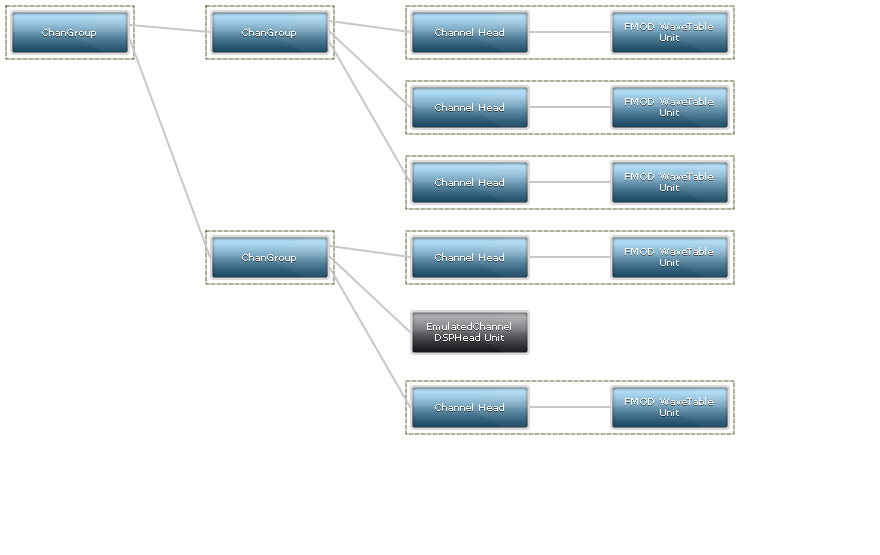
The Core API profiler tool displays the DSP graph, and can be used to quickly see which Channels have gone virtual. Consider the Channel Groups Example. If we add FMOD_INIT_PROFILE_ENABLE and add a call to System::setSoftwareChannels with 5, then we see one of the 6 Channels has gone virtual:
9.2 Non blocking loads, threads and thread safety
Core API commands are thread safe and queued. They get processed either immediately, or in background threads, depending on the command.
By default, things like initialization and loading a Sound are processed on the main thread.
Mixing, streaming, geometry processing, file reading and file loading are or can be done in the background, in background threads. Every effort is made to avoid blocking the main application's loop unexpectedly.
One of the slowest operations is loading a Sound. To place a Sound load into the background so that it doesn't affect processing in the main application thread, the user can use the FMOD_NONBLOCKING flag in System::createSound or System::createStream.
FMOD thread types:
- The Mixer thread. This thread is the software mixing thread. This is the thread that does the real work of mixing the DSP graph. It is created at System::init.
- The stream thread. This thread is used for decoding streams. It is created the first time a sound is loaded as a stream in System::createSound with FMOD_CREATESTREAM, or System::createStream.
- The async loading thread. This thread is created the first time a sound is loaded with the FMOD_NONBLOCKING flag in System::createSound.
- The file reading thread. This thread is used for reading from disk for streams, to then be decoded (decompressed) by the Stream thread. It is created the first time a sound is loaded as a stream in System::createSound with FMOD_CREATESTREAM, or System::createStream.
- The Studio thread. When using the Studio API, this thread processes all Studio API commands and updates Studio events. It is created during Studio::System::initialize by default, unless FMOD_STUDIO_INIT_SYNCHRONOUS_UPDATE is specified as an init flag.
9.2.1 Thread Affinity
On some platforms, FMOD thread affinity can be customized. See the platform specific Platform Details page for more information.
9.2.2 FMOD Callback Types
FMOD File and memory callbacks can possibly be called from an FMOD thread. Remember that if you specify file or memory callbacks with FMOD, to make sure that they are thread safe. FMOD may call these callbacks from other threads.
9.2.3 Core API Thread Safety
By default, the Core API is initialized to be thread safe, which means the API can be called from any game thread at any time. Core API thread safety can be disabled with the FMOD_INIT_THREAD_UNSAFE flag in System::init or Studio::System::initialize. The overhead of thread safety is that there is a mutex lock around the public API functions and (where possible) some commands are enqueued to be executed the next system update. The cases where it is safe to disable thread safety are:
- The game is using Studio API exclusively, and never issues Core API calls itself.
- The game is using the Core API exclusively, and always from a single thread at once.
- The game is using Studio API and Core API at the same time, but FMOD Studio is created with FMOD_STUDIO_INIT_SYNCHRONOUS_UPDATE and the Core API calls are done in the same thread as the Studio API calls.
9.2.4 Studio API Thread Safety
By default, the Studio API is completely thread safe, and all commands execute on the Studio API update thread. In the case of a function that returns a handle, that handle is valid as soon as the function returns it, and all functions using that handle are immediately available. As such, if a command is delayed, the delay is not immediately obvious, and does not delay subsequent commands on the thread.
If Studio::System::initialize is called with FMOD_STUDIO_INIT_SYNCHRONOUS_UPDATE, then Studio will not be thread-safe as it assumes all calls will be issued from a single thread. Commands in this mode will be queued up to be processed in the next Studio::System::update call. This mode is not recommended except for testing or for users who have set up their own asynchronous command queue already and wish to process all calls on a single thread. See the Studio Thread Overview for further information.
9.3 CPU Performance
Before we jump into the details, let's first consider how performance is measured in the FMOD Engine. The primary metric we use, when discussing how expensive something is, is CPU percentage. We can calculate this by measuring the time spent performing an action and comparing it against a known time window; the most common example of this is DSP or mixer performance.
When we talk about mixer performance we are actually talking about the production of audio samples being sent to the output (usually your speakers). At regular intervals, our mixer produces a buffer of samples which represents a fixed amount of time for playback. We call this a DSP block. DSP block size often defaults to 512 samples, which when played back at 48 kHz represents ~10ms of audio.
With a fixed amount of samples being produced regularly, we can now measure how long it takes to produce those samples and receive a percentage. For example, if it took us 5ms of CPU time to produce 10ms of audio, our mixer performance would be 50%. As the CPU time approaches 10ms we risk not delivering the audio in time which results in an audio discontinuity known as stuttering.
Another key performance area is update(). This operation is called regularly to do runtime housekeeping. Our recommendation is you call update() once per render frame, which is often 30 or 60 times per second. Using the 30 or 60 FPS (frames per second) known time frame, we can measure CPU time spent performing this action to get percentages.
Armed with the ability to measure performance, we need to identify the things that cost the bulk of the CPU time. The most commonly quoted contributor is Channel count, following the logic that playing more Channels takes up more CPU time. Following is a list of the main contributors to the cost of sound playback:
- Decoding compressed audio to PCM.
- Resampling the PCM to the appropriate pitch.
- Applying DSP effects to the Channel.
- Mixing the audio with other sounds to produce the final output you hear.
9.3.1 Compression Format
Choosing the correct compression format for the kind of audio you want to play and the platform you want to play it on is a big part of controlling the CPU cost. For recommendations on format choice, see the Platform Details chapter.
9.3.2 Voice Limiting
Once you've settled on a compression format, you need to decide how many Channels of that format you want to be audible at the same time. There are three ways you can use to control the number of Channels playable:
- System::init (maxChannels, ...) The maximum number of Channels that can play at once.
- System::setSoftwareChannels (numSoftwareChannels) The maximum number of software mixed (i.e.: non-virtual) Channels that can play once.
- FMOD_ADVANCEDSETTINGS max???Codec The maximum number of decoders that can run at once, where ??? is the compression format.
For a deep dive into how the virtual voice system works and ways to further control Channel count, see the Virtual Voice System.
9.3.3 Tips and Tricks
With a correctly configured compression format and appropriate Channel count, you are well on your way to an efficiently configured set up. Next up is a series of CPU-saving tips to consider for your project. Not all are applicable to every project, but they should be considered if you want to get the best performance from the FMOD Engine.
Adjust Sample Rates
There are two sample rates you need to think about when optimizing, the system sample rate and the source audio sample rate.
You can control the system sample rate by using System::setSoftwareFormat (sampleRate, ...), which by default is 48 kHz. Reducing this can give some big wins in performance because less data is being produced. This setting is a trade off between performance and quality.
To control the source audio rate, you can resample using your favorite audio editor or use the sample rate settings when compressing using the FSBank tool or the FSBankLib API. All audio is sent to a resampler when it is played at runtime. If the source sample rate and the System rate match and there are no pitch / frequency settings applied to the Channel, the resampler is skipped, saving CPU time. This trick is often good for music and other sounds that rarely require real-time pitch adjustment.
Increase DSP Block Size
As mentioned earlier, the DSP block size represents a fixed amount of samples that are produced regularly to be sent to the speakers. When producing each block of samples, there is a fixed amount of overhead, so making the block size larger reduces the overall CPU cost. You can control this setting with System::setDSPBufferSize (blockLength, ...), which often defaults to 512 or 1024 samples, depending on the platform.
The trade off with this setting is CPU against mixer granularity. For more information about the implications of changing this setting, see the System::setDSPBufferSize section of the Core API Reference chapter.
Reduce Speaker Channel Count
This section refers to channel count in the context of speaker channels as they exist in audio files.
Controlling how many channels of audio are being played can have a big impact on performance. Consider the simple math that a 7.1 surround signal has eight channels, and thus four times as much data to process as a stereo signal. There are a few different places where speaker channel count can be controlled to improve performance.
The source audio channel count should be carefully chosen. Often mono sources are best, especially for sounds that are positioned in 3D. Reducing the channel count at the source is an easy win, and also decreases the decoding time for that sound.
Setting the system channel count controls how 3D sounds are panned when they are given a position in the world. You set this channel count by specifying a speaker mode that represents a well known speaker configuration, such as 7.1 surround or stereo. To do this, use System::setSoftwareFormat (..., speakerMode, ...). The default value of this parameter matches your output device settings.
As a more advanced setting, you can limit the number of speaker channels produced by a sub-mix, or the number of channels entering a particular DSP effect. This can be especially useful for limiting the channels into an expensive effect. The API to control this is DSP::setChannelFormat(..., speakerMode). By default, this parameter is the output of the previous DSP unit.
Choose Inexpensive DSPs
Not all DSPs are created equal. Some are computationally simple and use very little CPU, others can be quite expensive. When deciding to use a particular effect, it is important to profile on the target platforms' hardware to fully understand the CPU implications.
The positioning of an effect in the DSP graph can make a big difference on a game's resource cost. Placing an effect on every channel routed into a channel group means it can affect each of those channels differently, but costs a lot more CPU time than placing that effect only on the channel group. There are no strict rules for where each effect should be positioned, but to give an example, multiband equalizer DSP effects are cheap enough that they can often be applied to every channel without straining a game's resource budget, while the SFX reverb DSP effect is expensive enough that it's more common to add a single instance of it to a channel group so that it's applied to the sub-mix.
Take Advantage of Hardware Decoding
Some platforms have access to hardware assisted decoders, which offload the processing from the CPU to dedicated decoding hardware. These can be utilized by building banks with the corresponding platform's format, such as AT9, XMA, or Opus.
When using hardware assisted decoders with streams, each Channel reserves a hardware decoder for the lifetime of the Channel. This means that the Virtual Voice System is not able to steal any hardware decoders that are in use. As a result, if all hardware decoders are in use, new streamed Channels cannot play until an existing streamed Channel stops and yields its decoder. Therefore, you should not rely on the Virtual Voice System to cull streamed Channels when using hardware decoders. Treat hardware decoders as you would any other limited resource, only using what you need and freeing Channels when they are no longer required.
9.4 Custom File Systems and Memory Management
The Core API caters to the needs of applications and their memory and file systems. A file system can be 'plugged in' so that FMOD uses it, and not its own system, as well as memory allocation.
To set up a custom file system is a simple process of calling System::setFileSystem.
The file system handles the normal cases of open, read, seek, close, but adds an extra feature which is useful for prioritized/delayed file systems, FMOD supports the FMOD_FILE_ASYNCREAD_CALLBACK callback, for deferred, prioritized loading and reading, which is a common feature in advanced game streaming engines.
An async read callback can immediately return without supplying data, then when the application supplies data at a later time, even in a different thread, it can set the 'done' flag in the FMOD_ASYNCREADINFO structure to get FMOD to consume it. Consideration has to be made to not wait too long or increase stream buffer sizes, so that streams don't audibly stutter/skip.
To set up a custom memory allocator is done by calling Memory_Initialize. This is not an FMOD class member function because it needs to be called before any FMOD objects are created, including the System object.
To read more about setting up memory pools or memory environments, see the Memory Management section of the Managing Resources in the Core API chapter.
9.5 Memory Management
The following are some pointers on ways of saving memory in the FMOD Engine.
9.5.1 Use a Fixed-size Memory Pool.
To make the FMOD Engine stay inside a fixed size memory pool, and not do any external allocs, you can use the Memory_Initialize function. i.e.:
result = FMOD::Memory_Initialize(malloc(4*1024*1024), 4*1024*1024, 0,0,0);  // allocate 4mb and pass it to the FMOD Engine to use.
ERRCHECK(result);
Alternatively, you can use this function to specify your own callbacks for alloc and free. If you do, the memory pool pointer and length must be NULL.
9.5.2 Lower Sound Instance Overhead.
The FMOD_LOWMEM flag can be used to shave some memory off of the sound class. This flag removes memory allocation for certain features which aren't used often in games. For example, it removes the 'name' field, so if Sound::getName is called when this flag is set, it returns "(null)".
9.5.3 Use Compressed Samples
The FMOD Engine can play ADPCM, AT9, MP2/MP3, Opus, and XMA data compressed, without needing to decompress them to PCM first. This can save a large amount of memory, at the cost of requiring more CPU time when the sound is played.
To enable this, use the FMOD_CREATECOMPRESSEDSAMPLE flag when calling System::createSound. When using formats other than the ones specified above or platforms that do not support those formats, this flag is ignored.
On platforms that support hardware decoding, using this flag results in the platform hardware decoder decompressing the data without affecting the main CPU. For information about what platforms support hardware decoding and which encoding formats they support, see the Platform Details chapter.
Using FMOD_CREATECOMPRESSEDSAMPLE incurs a 'one off' memory overhead cost, as it allocates the pool of codecs required to play the encoding format of the sample data. For information on how to control this pool, see the following section.
9.5.4 Control Memory Usage with Settings
For sounds created with FMOD_CREATECOMPRESSEDSAMPLE, System::setAdvancedSettings allows you to reduce the number of simultaneous XMA/ADPCM or MPEG sounds played at once, to save memory. The defaults are specified in the documentation for this function. Lowering them reduces memory consumption. The pool of codecs for each codec type is only allocated when the first sound of that type is loaded, so reducing XMA (for example) to 0 when XMA is never used does not save any memory.
For streams, setting System::setStreamBufferSize controls the memory usage for the stream buffer used for each stream. Lowering the size in this function reduces memory consumption, but may also lead to stuttering streams. This is purely based on the type of media the FMOD streamer is reading from (e.g.: a CD-ROM is slower than a hard disk), so you should experiment with your target platforms' hardware to determine whether changing the stream buffer size will cause problems.
Reducing the number of Channels used reduces memory consumption. System::init's maxchannels parameter sets the maximum number of concurrent voices, and System::setSoftwareChannels sets the maximum number of concurrent real voices. You should specify enough voices though to avoid Channel stealing.
9.5.5 Tracking FMOD memory usage.
Using Memory_GetStats is a good way to track FMOD memory usage, and also find the highest amount of memory allocated at any time. This information is useful when attempting to trim or adjust your project's memory consumption; for example, when adjusting the fixed memory pool size.