Unreal Integration 2.03
11. Game Components
11.1 FMOD Ambient Sound
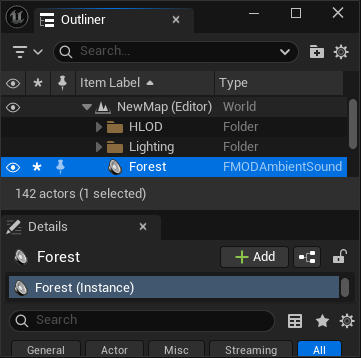
The FMOD Ambient Sound in the FMOD Unreal Integration allows you to easily play an FMOD Studio Event at a specific location in your level. Each Ambient Sound Actor creates and manages an Event Instance, which is handled automatically by the FMOD Audio Component.
11.1.1 Adding FMOD Ambient Sounds
Drag & Drop from the FMOD Content Browser
You can drag an Event asset directly from the FMOD Content folder in the Content Browser into your level. This will create an FMOD Ambient Sound Actor in your scene with the selected event already assigned.
Add To Project Dropdown
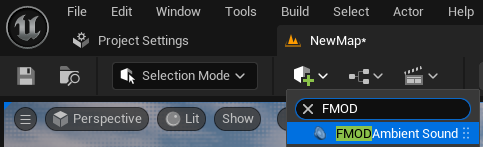
Searching for FMOD Ambient Sound wil expose the component to be added to the map.
11.2 FMOD Audio Component
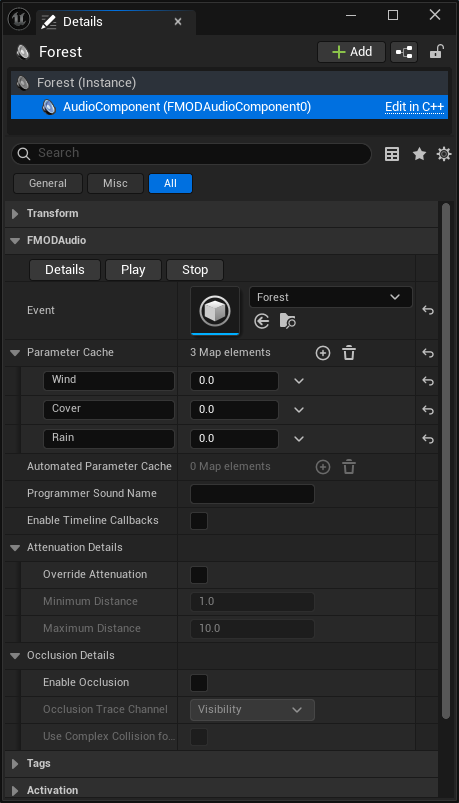
The FMOD Audio Component allows you easily add FMOD events to actors in your map. The Audio Component can start its event instance, assign initial parameter values and additional options.
11.2.1 Selecting the Event
Use the Event property in the Details panel to assign an FMOD Event. You can:
- Choose from the dropdown list (auto-filled from FMOD assets in your project).
- Drag the Event asset directly from the Content Browser into the Event field.
11.2.2 Playing an Event
Playing automatically
Enable the Auto Activate property to have the event start playing when the game begins or when the Actor is spawned.
Scripted Playback
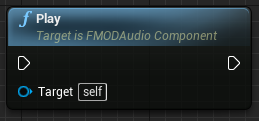
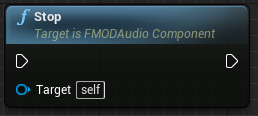
You can also control playback via Blueprints or C++:
Blueprint
One-Shot vs Looping
- One-shot events will create a new instance each time you call
Play(). These will automatically release once playback is complete. - Looping events continue until explicitly stopped.
11.2.3 Parameter Cache
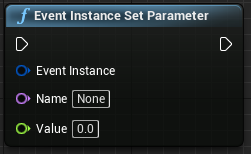
You can set Initial Parameters values in the component before playback starts. The array will be populated by parameters applied to the event in FMOD Studio. To change parameter values during gameplay during playback via Blueprints of C++:
11.2.4 Automated Parameter Cache
This shows a non-editable list of all parameters which are being either automated in FMOD Studio or used for Occlusion and Ambience, which are specified in the settings.
Blueprint
C++
Emitter->SetParameter("Wind", 0.5f);
11.2.5 Programmer Sound Name
An Audio Component can be used to set the key or file path to be played via a Programmer Instrument
11.2.6 Attenuation & 3D Settings
Enabling Attenuation Override will apply then be able to apply new minimum and maximum values for falloff distances.
Note: the values entered here will not affect a spatializer on the event that is overriding with its own values.
11.2.7 Occlusion Details
Enabling occlusion will use a raycast from the event to the listener to determine of occlusion should be applied to the signal of the event. The Channel to be checked against can be changed here. For more information please refer to the Occlusion Settings.