Unreal Integration 2.03
4. Plugins
FMOD Studio projects can be set up to use third party plugins. These can include custom DSP effects that are created in-house or commercial products that can be used with FMOD Studio.
4.1 Adding plugins to the project
4.1.1 Dynamic Plugins
The plugins must be loaded at runtime so that they are there when loading the banks that need them. Plugins are set up in the project settings Advanced section.
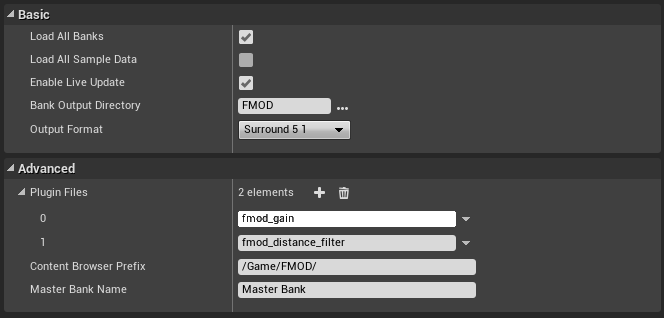
Each entry should be the filename of the plugin, without any extension. Any plugin files required should be added to the platform's binary directory:
| Platform | Binary Directory |
|---|---|
| Windows | Plugins/FMODStudio/Binaries/Win64 |
| Mac | Plugins/FMODStudio/Binaries/Mac |
| iOS | Plugins/FMODStudio/Binaries/IOS |
| tvOS | Plugins/FMODStudio/Binaries/TVOS |
| Android | Plugins/FMODStudio/Binaries/Android |
| PS4 | Platforms/PS4/Plugins/FMODStudio/Binaries |
| PS5 | Platforms/PS5/Plugins/FMODStudio/Binaries |
| Switch | Platforms/Switch/Plugins/FMODStudio/Binaries |
| WinGDK | Platforms/WinGDK/Plugins/FMODStudio/Binaries |
| Xbox One | Platforms/XB1/Plugins/FMODStudio/Binaries |
| Xbox Series | Platforms/XSX/Plugins/FMODStudio/Binaries |
For example, to use fmod_gain.dll on Win64 builds, you should add the file here:
FMODStudio/Binaries/Win64/fmod_gain.dll
4.1.2 Static Plugins
Switch, iOS, and tvOS require plugins to be linked statically, which requires manually registering them with the FMOD::System. To achieve this you can create a new UObject that implements IFMODCallbackHandler and calls FMOD::System::registerDSP in the IFMODCallbackHandler::PreInitialize callback.
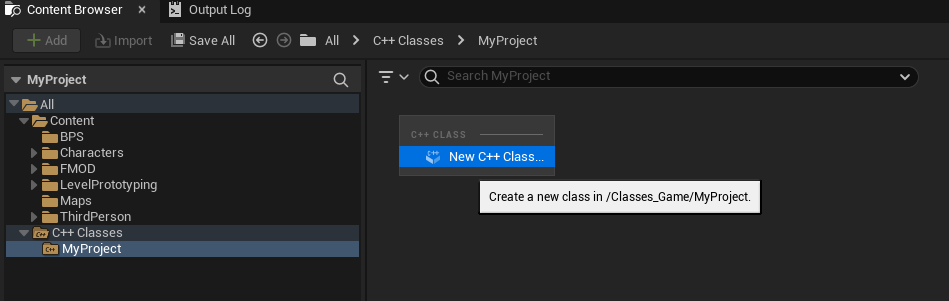
Creating the C++ UObject:
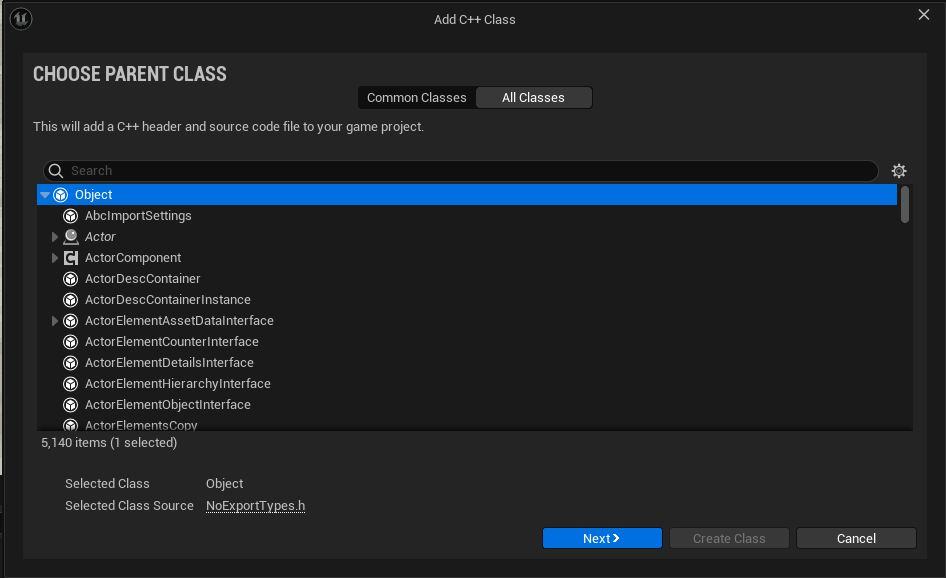
Select Object:
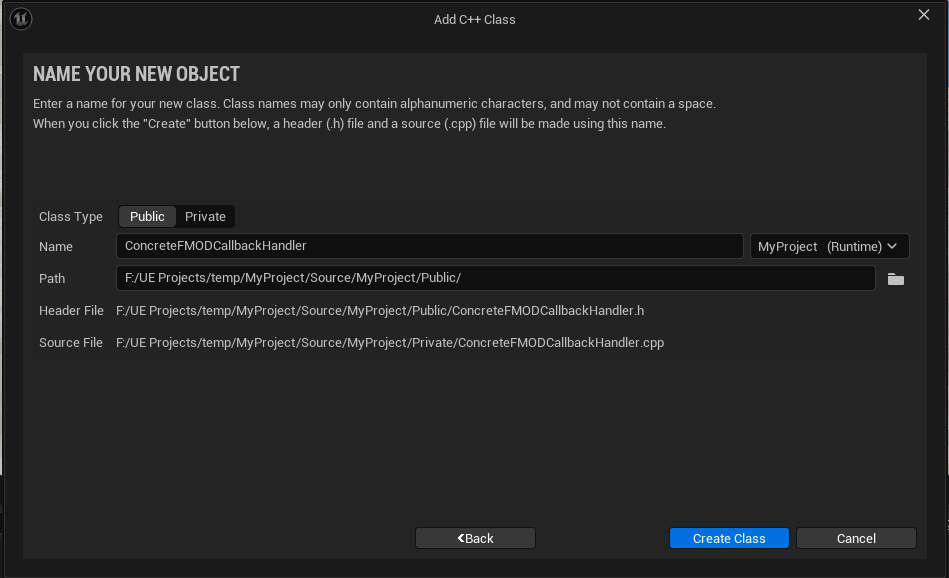
Name the Object:
Implement the callback handler, replacing MYPROJECT_API with the name of your project's API:
#pragma once
#include "CoreMinimal.h"
#include "UObject/NoExportTypes.h"
#include <FMODCallbackHandler.h>
#include "fmod_errors.h"
#if PLATFORM_IOS
extern "C" FMOD_DSP_DESCRIPTION* FMOD_ResonanceAudioListener_GetDSPDescription();
extern "C" FMOD_DSP_DESCRIPTION* FMOD_ResonanceAudioSoundfield_GetDSPDescription();
extern "C" FMOD_DSP_DESCRIPTION* FMOD_ResonanceAudioSource_GetDSPDescription();
#endif
#include "ConcreteFMODCallbackHandler.generated.h"
UCLASS()
class MYPROJECT_API UConcreteFMODCallbackHandler : public UObject, public IFMODCallbackHandler
{
    GENERATED_BODY()
public:
    void PreInitialize(FMOD::Studio::System* System) override
    {
#if PLATFORM_IOS
        FMOD::System* CoreSystem;
        FMOD_RESULT result = System->getCoreSystem(&CoreSystem);
        if (result != FMOD_OK)
        {
            UE_LOG(LogTemp, Warning, TEXT("UConcreteFMODCallbackHandler::PreInitialize: Failed to acquire core system: %s"), UTF8_TO_TCHAR(FMOD_ErrorString(result)));
            return;
        }

        unsigned int ListenerHandle;
        result = CoreSystem->registerDSP(FMOD_ResonanceAudioListener_GetDSPDescription(), &ListenerHandle);
        if (result != FMOD_OK)
        {
            UE_LOG(LogTemp, Warning, TEXT("UConcreteFMODCallbackHandler::PreInitialize: Failed to register ResonanceAudioListener: %s"), UTF8_TO_TCHAR(FMOD_ErrorString(result)));
        }

        unsigned int SoundfieldHandle;
        result = CoreSystem->registerDSP(FMOD_ResonanceAudioSoundfield_GetDSPDescription(), &SoundfieldHandle);
        if (result != FMOD_OK)
        {
            UE_LOG(LogTemp, Warning, TEXT("UConcreteFMODCallbackHandler::PreInitialize: Failed to register ResonanceAudioSoundfield: %s"), UTF8_TO_TCHAR(FMOD_ErrorString(result)));
        }

        unsigned int SourceHandle;
        result = CoreSystem->registerDSP(FMOD_ResonanceAudioSource_GetDSPDescription(), &SourceHandle);
        if (result != FMOD_OK)
        {
            UE_LOG(LogTemp, Warning, TEXT("UConcreteFMODCallbackHandler::PreInitialize: Failed to register ResonanceAudioSource: %s"), UTF8_TO_TCHAR(FMOD_ErrorString(result)));
        }
#endif
    }
};
Once you recompile your source code you will be able to assign your newly created callback handler object to the UFMODSettings::CallbackHandler in the project settings Advanced section:
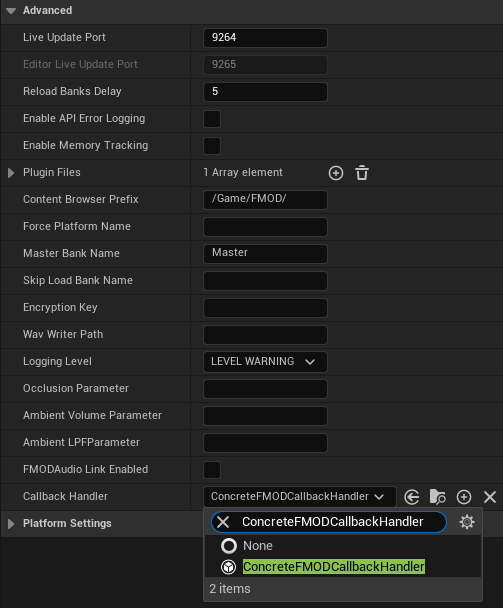
Alternatively you can specify a callback handler on a per-platform basis in the Platform Settings. If both callback handlers are specified only the platform specific callback handler will be executed.
4.2 Deploying FMOD plugins
The following steps are no longer required after v2.03.13.
The integration will now use the list of plugins from the FMOD Unreal Settings.
You will need to make sure that both static and dynamic plugins are deployed. Unreal deployment doesn't have access to the settings information so you will need to create an extra file that lists the plugins you want to deploy.
Create a file "plugins.txt" in the platform's "Binaries" directory. The text file should contain the plugin names (just the name without file extension).
For example, to deploy fmod_gain.dll on Win64 builds, create a file FMODStudio/Binaries/Win64/plugins.txt with the following contents:
fmod_gain
Check the Platform Specifics for information relating to plugins on specific platforms.
4.3 FMOD Haptics Setup
The FMOD Haptics plugin can be used to generate haptic vibrations authored in Meta Haptics Studio.
In order to enable the plugin, you’ll need to follow the Dynamic Plugin setup guide. For FMOD Haptics, navigate to Project Settings, select FMOD Studio under the Plugins section, then scroll to Advanced then finally Plugin Files. Click the Plus icon to add an entry and add “fmod_haptics”. You'll need to restart your editor to apply these changes.
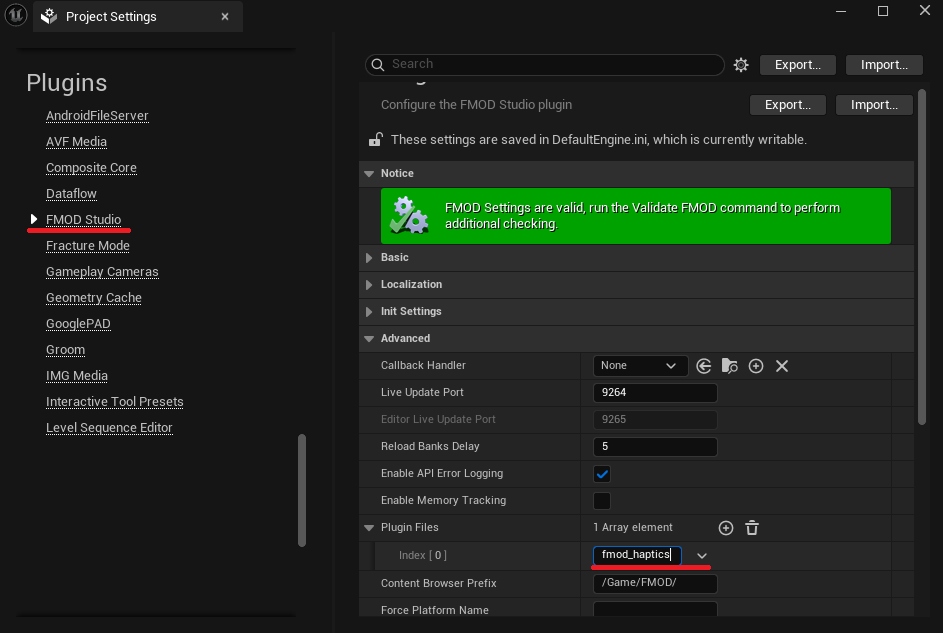
If you have an Xbox or PS5 controller connected to your computer you can audition events containing the Haptics Instrument in-editor. Meta Quest controllers cannot be auditioned in-editor, and require additional configuration for use in a built application. The above setup is sufficient for haptic vibrations on all other supported devices.
4.3.1 Supported Devices
- PS5 DualSense Wireless Controller
- Xbox Wireless Controller
- Meta Quest Touch, Touch Plus and Touch Pro controllers
4.3.2 Dependencies
- Unreal Engine 5.4 or above
4.3.3 Enable FMOD Studio OpenXR (Quest only)
Dependencies
- OpenXR Unreal Plugin
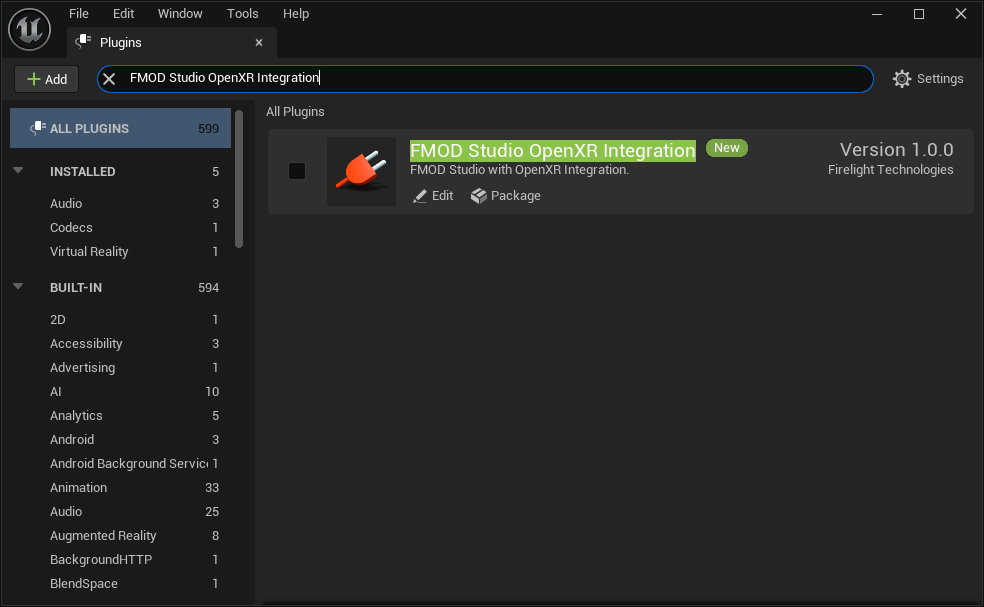
The FMOD Studio OpenXR Integration is disabled by default, and must be enabled for FMOD Haptics to operate on Quest. To enable it, navigate to "Edit > Plugins", and search for "FMOD Studio OpenXR Integration". Tick the plugin to enable it, and restart the Unreal Editor for changes to take effect.
APL Configuration
A specific APL file is required for packaging on Meta Quest. Please create a new file in Plugins/FMODStudio/Binaries/Android called "fmod_haptics_APL.xml" with the following contents:
<?xml version="1.0" encoding="utf-8"?>
<!--Plugin additions-->
<root xmlns:android="http://schemas.android.com/apk/res/android">
    <!-- init section is always evaluated once per architecture -->
    <init>
        <log text="fmod_haptics APL init"/>
    </init>

    <!-- optional files or directories to copy to Intermediate/Android/APK -->
    <resourceCopies>
        <log text="fmod_haptics APL copying files for $S(Architecture)/"/>
        <copyFile src="$S(PluginDir)/quest/libfmod_haptics.so"
                    dst="$S(BuildDir)/libs/$S(Architecture)/libfmod_haptics.so" />
    </resourceCopies>

    <!-- optional libraries to load in GameActivity.java before libUE4.so -->
    <soLoadLibrary>
        <log text="fmod_haptics APL adding loadLibrary references"/>
        <loadLibrary name="fmod_haptics" failmsg="fmod_haptics not loaded and required!" />
    </soLoadLibrary>
</root>