FMOD Studio User Manual 2.02
- Welcome to FMOD Studio
- FMOD Studio Concepts
- Organizing the Project
- Authoring Events
- Working with Instruments
- Managing Assets
- Parameters
- Getting Events into Your Game
- Mixing
- The Sandbox
- Editing During Live Update
- Profiling
- Dialogue and Localization
- Using Source Control
- Supporting Downloadable and User-generated Content
- Advanced Topics
- Quick Start Tutorial
- Effect Reference
- Event Macros Drawer Reference
- Instrument Reference
- Keyboard Shortcut Reference
- Modulator Reference
- Parameters Reference
- Plug-in Reference
- Scripting
- Scripting API Reference
- Troubleshooting
- Glossary
- Appendix: Celeste Getting Started Guide
- Appendix: Reaper Integration
19. Event Macros Drawer Reference
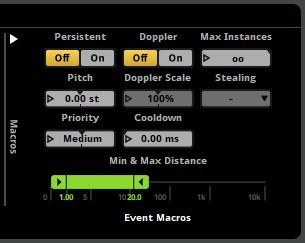
Each event in your FMOD Studio project has macro controls to provide further control over your event's pitch, how your events are created, how many event instances can exist, and how they behave when too many instances are created in game.
19.1 How to Read This Reference
- Property (Control)
- The name of the property as it appears in FMOD Studio, and the type of control it is manipulated by. The types of controls are:
Button: Click on a button to execute a command. Some buttons are toggles that are colored yellow to indicate if they are active.
Dial: A control knob. Click and drag up and down to adjust the property's value.
Dropdown: A menu where you select a value from a list. The current selection is displayed in the collapsed dropdown menu.
Number Box: A box displaying the value of the property. Click on the box's edit triangle to manually enter a value, or click and drag the value to make adjustments. Double click on the number box to reset it's value. - Units
- What the property's unit of measurement is. If a property does not use a unit of measurement no unit will be listed. Valid units are:
st: Semitones
%: Percentage points
ms: Milliseconds
sec: Seconds - Range
- The minimum and maximum values valid for that property. If a property does not use a range this will not be listed.
- Link to the FMOD Engine User Manual
- For more information on the property and its usage in code, a link is provided to the relevant section of the FMOD Engine User Manual.
19.2 Persistent

The persistent property is used to keep the event instance playing until it is explicitly stopped.
If the persistent option is enabled, it forces an event to continue playing even when it is not producing audio and would otherwise stop.
If the persistent property is not enabled an event will stop on its own if no instruments are triggered and the playback position of the timeline is beyond the end of the timeline (ie. beyond the end of the last marker or instrument trigger region).
The persistent property is used to avoid situations such as an event that will only trigger an instrument once its parameter reaches a certain value, but it is automatically stopped due to no audio being produced. For example, a health event that only produces a heartbeat sound when the parameter monitoring the players health reaches below 20% (remaining silent when healthy).
Snapshots always behave in a persistent fashion.
- Persistent (Button)
- When enabled, it will cause an event to continue playing until explicitly told to stop.
19.3 Pitch

The pitch property of the event adjusts the sample rate of all instruments placed in the event. If any instruments in the event have had their pitch properties altered, this is summed together with the event's pitch property.
When adjusting the sample rate in such a manner, the playback speed of the event is affect. This speeds up or slows down the event and therefore raises or lowers the output pitch of the event.
You could use this pitch in game to give the illusion of a fast-forwarding tape when increased, or of bullet time when decreased.
- Pitch (Number Box)
- Adjusts the playback speed of the event. Measured in semitones (st).
Units: st
Range: -24 st to 24 st
19.4 Doppler

The Doppler property provides an automatic adjustment to the event's pitch based on the velocity of the event emitter relative to the listener. When the event emitter is moving towards the listener, the pitch of the event rises. When the event emitter is moving away from the listener, the pitch of the event lowers. This simulates the Doppler effect experienced by a listener when the relative speed of audio emitters approaches the speed of sound.
The Doppler property requires velocity in order to calculate how much Doppler adjustment needs to be applied. Velocity can be provided by the game engine or by calling EventInstance::set3DAttributes. In the case of the Unity and Unreal Engine integrations, this is usually set automatically to match the velocity of the associated Rigidbody or RigidBody.
Clicking on the Doppler button enables or disables this feature. The amount of pitch adjustment that occurs during the Doppler effect is determined by the scale property.
A common usage of the Doppler is for vehicles passing the listener at high speed.
- Doppler (Button)
- Enables or disables the Doppler effect on the event.
For more information on the Doppler effect, see the 3D Sounds white paper in the FMOD Engine User Manual.
19.5 Doppler Scale
The Doppler scale property is a linear scale factor on the amount of pitch adjustment applied to the event by Doppler when Doppler is enabled. Setting this property to 0% prevents any Doppler effect from being applied to the event.
For an event to be subject to the Doppler effect, it must have a velocity. By default, the velocity passed to the FMOD Studio API is measured in meters-per-second. This unit of measurement can be changed to match what is being used in your game by setting the dopplerscale and distancefactor specified in your game's code. For more information, see the System::set3DSettings section of the FMOD Engine User Manual.
The Doppler property needs to be enabled in order to adjust the Doppler scale property.
It is not possible to audition the Doppler effect or Doppler scale adjustments within FMOD Studio.
- Doppler Scale (Number Box)
- Adjusts the amount of pitch applied to the event by the Doppler effect.
Units: %
Range: 0% to 500%
For more information on the Doppler effect, see the Doppler section of the FMOD Engine User Manual.
19.6 Max Instances

The max instances property sets a limit on how many instances of this event can play simultaneously using the Virtual Voice System.
If your game's code attempts to play a new instance of the event, and creating that event instance would cause the number of instances of the event to exceed the number set in the event's max instances property, instances are culled or virtualized according to the event's stealing property.
This limits the number of simultaneously-playing instances of the event, preventing too many event instances from playing at the same time. This is especially helpful when a game includes frequent collision-triggered events, such as debris objects colliding with a floor following a wall collapse.
- Max Instances (Number Box)
- Adjusts how many instances of that event can be played at one time.
Range: 1 to 64, then ∞
19.7 Stealing

The event's stealing property determines how event instances should be stopped or virtualized using the Virtual Voice System, when the number of simultaneous instances of that event would otherwise exceed its max instances property.
The stealing behavior can be set to one of the following behaviors:
- Oldest: Stop the event instance that was started the longest time ago.
- Furthest: Stop the event instance that is the furthest away from the listener.
- Quietest: Stop the event instance that is the least audible, taking distance attenuation into consideration.
- Virtualize: The quietest event instances will be virtualized, meaning they are created (if needed) and played but produce no output until an existing event instance stops.
- None: No stealing will occur, therefore no new event instances can be played until an existing event instance stops.
Setting up stealing behavior is important to ensure players do not notice the event instances being affected going silent. For example, stealing the oldest instance is good for when there is lots of frequent collision-triggered events, such as large numbers of debris objects colliding with the floor following a wall collapse. Environmental sounds, such as many torches in a dungeon, would work well with virtualization where the quietest torch will become silent in favor of the closer, louder torches.
- Stealing (Dropdown)
- Selects the desired behavior once the maximum number of event instances playing has been reached.
Range: Oldest, Furthest, Quietest, Virtualize, None
19.8 Cooldown

The cooldown property determines how soon an instance of this event can be played after an instance of this event has started to play. If you attempt to start an instance of an event before the cooldown period has fully elapsed, that instance does not start.
The cooldown property is useful for ensuring two instances of the same event are not played at the same time, which can cause phasing issues. This can be used in situations such as pickup sounds where a player can pickup lots of items at the same time.
- Cooldown (Number Box)
- The amount of time required to pass before playing an instance of this event again.
Units: ms, sec
Range: 0.00 ms to 60.0 sec
19.9 Priority

The priority property sets how important this event's instruments are, in terms of virtualization. Each instrument or playlist item inside an instrument counts as a single voice.
FMOD steals or virtualizes a voice if creating a new voice would otherwise exceed the game engine's voice limit. By assigning priority to your events, you are assigning how important the instruments within them are.
Priority is ranked from "Highest" to "Lowest" and all instruments within the event are grouped by this priority setting. Events that have higher priority will not have their instruments stolen by instruments of events that have a lower priority.
Within groups of event instances of equal priority, higher priority is given to the instruments where the total volume value is higher and the lower priority is given to the instruments where the total volume value is lower. The total volume value is a combination of the event's master track's volume setting, the volume set in your game's code by Studio::EventInstance::setVolume, the distance attenuation (the attenuation set by the spatializer), the instrument's volume setting, the instrument's peak volume, and any automation and/or modulation related to the volume of the instrument or event.
Setting the event's priority to "Highest" will cause all voices within the event to never virtualize, even if effective volume is zero and vol0virtual is enabled.
This property is useful for ensuring instruments of events essential to your game, such as background music and dialogue, are not stolen by instruments of less important events, such as footsteps and ambience.
- Priority (Number Box)
- Selects how important an event is in regards to stealing and virtualization.
Range: Lowest, Low, Medium, High, Highest
For more information on virtualization in FMOD Studio, see the stealing and virtualization section of the advanced topics chapter. For detailed information about how virtualization is handled in the FMOD Engine, see the virtual voice system white paper in the FMOD Engine User Manual.
For more information about priority, see the FMOD_STUDIO_EVENT_PROPERTY section of the FMOD Engine User Manual.
19.10 Min and Max Distance
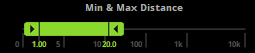
The min and max distance properties are used by spatializing effects in order to calculate attenuation falloff. Additionally, the value of the normalized distance property is calculated using the min and max distance property values.
The min and max distance property controls are only interactive if they are used by an FMOD spatializer effect, FMOD object spatializer effect, Resonance Audio source effect, or distance (normalized) built-in parameter in the event. Some third-party plug-in instruments and effects may also use the min and max distance property values. If there are no effects, parameters, or instruments in the event that use the min and max distance properties, those properties are grayed out and non-interactive.
The min distance property cannot be greater than the max distance property. If an automation curve sets the min distance to a higher value, the min distance is instead clamped to the value of the max distance.
- Min and Max Distance (Draggable slider)
- Adjusts the minimum and maximum distance used by spatializers.
Range: 0 to 10000