FMOD Studio User Manual 2.02
- Welcome to FMOD Studio
- FMOD Studio Concepts
- Organizing the Project
- Authoring Events
- Working with Instruments
- Managing Assets
- Parameters
- Getting Events into Your Game
- Mixing
- The Sandbox
- Editing During Live Update
- Profiling
- Dialogue and Localization
- Using Source Control
- Supporting Downloadable and User-generated Content
- Advanced Topics
- Quick Start Tutorial
- Effect Reference
- Event Macros Drawer Reference
- Instrument Reference
- Keyboard Shortcut Reference
- Custom Keyboard Shortcuts
- Global Keyboard Shortcuts
- Event Editor Window Keyboard Shortcuts
- Mixer Window Keyboard Shortcuts
- Audio Bin Window Keyboard Shortcuts
- Presets Browser Window Keyboard Shortcuts
- Event Browser Window Keyboard Shortcuts
- Mixer Routing Window Keyboard Shortcuts
- Profiler Window Keyboard Shortcuts
- Sandbox Window Keyboard Shortcuts
- Console Window Keyboard Shortcuts
- Modulator Reference
- Parameters Reference
- Plug-in Reference
- Scripting
- Scripting API Reference
- Troubleshooting
- Glossary
- Appendix: Celeste Getting Started Guide
- Appendix: Reaper Integration
21. Keyboard Shortcut Reference
FMOD Studio features a number of keyboard shortcuts. These key combinations allow you to perform certain common actions without using a mouse or similar pointing device. Keyboard shortcuts allow you to save time by performing actions more quickly than would otherwise be possible.
A limited number of keyboard shortcuts are shown to the right of their associated commands in the "File", "Edit", "Create", "View", "Window", "Scripts", and "Help" menus. Keyboard shortcuts are not displayed in context menus other than text input field context menus.
This chapter lists all the keyboard shortcuts present in FMOD Studio, grouped by the windows and panes in which they function. Note that some keyboard shortcuts do different things depending on which window or pane is in focus. For example, Ctrl+N creates a new 3D event in the events browser, but creates a new VCA in the VCAs browser, and does nothing in the assets browser. Any keyboard shortcut that does different things depending on the window and pane in focus is listed more than once.
21.1 Custom Keyboard Shortcuts
It is possible to customize the keyboard shortcuts of certain actions.
To add and edit keyboard shortcuts, open the preferences dialog and select the shortcuts tab.
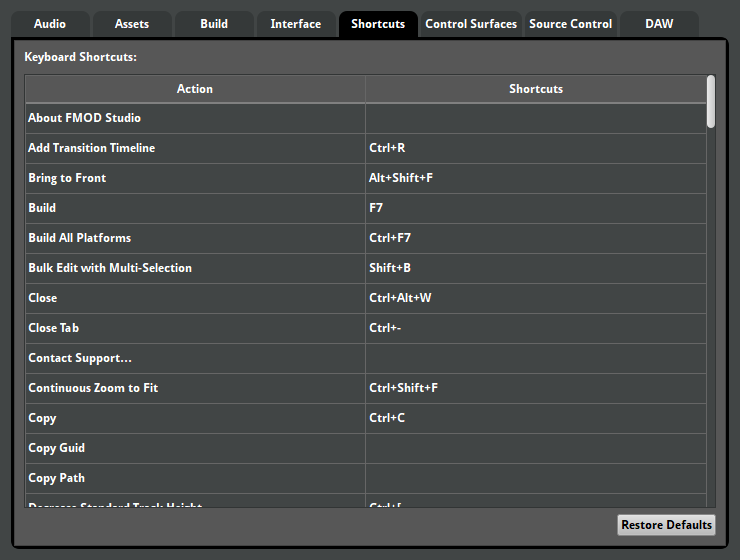
To add a new shortcut to an action or edit an action's existing shortcut, double click on the shortcuts cell to the right of the action you wish to change and then press the desired keyboard shortcut. You can press enter or return on your keyboard to apply the change, or press a different keyboard shortcut to replace the change. If you wish to cancel, press the escape key. To delete an existing shortcut, select that action's row and press either the backspace or delete key.
Certain keys on the keyboard cannot be used for shortcuts, for example the enter or return key, the escape key, the print screen key, or the Windows key.
Actions sharing the same keyboard shortcut are highlighted in red. When multiple actions share the same keyboard shortcut, no action is performed when the assigned keyboard shortcut is pressed.
21.2 Global Keyboard Shortcuts
These shortcuts are available in every FMOD Studio window as long as no modal dialogs are present.
| Shortcut | Action |
|---|---|
| Ctrl+Alt+N (Windows) Command+Alt+N (macOS) |
Create a new project. |
| Ctrl+O (Windows) Command+O (macOS) |
Open an existing project. |
| Ctrl+Shift+O (Windows) Command+Shift+O (macOS) |
Open the most recently opened project. |
| Ctrl+S (Windows) Command+S (macOS) |
Save the current project. |
| Ctrl+Shift+S(Windows) Command+Shift+S (macOS) |
Save the current project, with the option of specifying an appropriate name and path. |
| Ctrl+Alt+W (Windows) Alt+F4 (Windows) Command+Alt+W (macOS) |
Close the current project. If there are no other FMOD Studio projects open, exit FMOD Studio. |
| Ctrl+Alt+F4 (Windows) Command+Q (macOS) |
Exit FMOD Studio. |
| Ctrl+Shift+I (Windows) Command+Shift+I (macOS) |
Import audio files from an external source into the project's assets folder. |
| F5 | Connect to your game using live update. |
| F7 | Build all banks of the project for the currently selected platform. |
| Shift+F7 | Build all banks of the project for all platforms. |
| Ctrl+Z (Windows) Command+Z (macOS) |
Undo the most recent change to the project in the current session. |
| Ctrl+Y (Windows) Command+Shift+Z (macOS) |
Redo the most recently undone change to the project in the current session. |
| Ctrl+Shift+L | Toggle loop playback mode. |
| ` | Toggle follow playback position mode. |
| Meta(Start)+S (Windows) Ctrl+S (macOS) |
Toggle snap to items mode. |
| Meta(Start)+Shift+S (Windows) Ctrl+Shift+S (macOS) |
Toggle snap to ruler mode. |
| C | Toggle between showing compact and standard width mixer strips in the strips view. |
| Ctrl+L (Windows) Command+L (macOS) |
Toggle display of marker lines in tracks view. |
| Shift+B | Toggle whether to bulk edit events when multiple events are selected in the event editor window's events browser. |
| Ctrl+. (Windows) Command+. (macOS) |
Toggle between flattened and nested object listing in supported browsers. |
| Ctrl+M (Windows) Command+M (macOS) |
Minimize the current FMOD Studio window. |
| Ctrl+` (Windows) Command+` (macOS) |
Cycle through currently open FMOD Studio windows. |
| Ctrl+1 (Windows) Command+1 (macOS) |
Bring an event editor window associated with the current project to the front/Open a new event editor window associated with the current project. |
| Ctrl+2 (Windows) Command+2 (macOS) |
Bring a mixer window associated with the current project to the front/Open a new mixer window associated with the current project. |
| Ctrl+3 (Windows) Command+3 (macOS) |
Bring the audio bin window associated with the current project to the front/Open the audio bin window associated with the current project. |
| Ctrl+4 (Windows) Command+4 (macOS) |
Bring the event browser window associated with the current project to the front/Open the event browser window associated with the current project. |
| Ctrl+5 (Windows) Command+5 (macOS) |
Bring the mixer routing window associated with the current project to the front/Open the mixer routing window associated with the current project. |
| Ctrl+6 (Windows) Command+6 (macOS) |
Bring a profiler window associated with the current project to the front/Open a new profiler window associated with the current project. |
| Ctrl+7 (Windows) Command+7 (macOS) |
Bring a sandbox window associated with the current project to the front/Open a new sandbox window associated with the current project. |
| Ctrl+8 (Windows) Command+8 (macOS) |
Bring the preset browser window associated with the current project to the front/Open the presets browser window associated with the current project. |
| Ctrl+0 (Windows) Command+0 (macOS) |
Bring the console window associated with the current project to the front/Open the console window associated with the current project. |
| Ctrl+W (Windows) Command+W (macOS) |
Close the current FMOD Studio window. |
| F1 | Open this manual. |
In addition to pure keyboard shortcuts, FMOD Studio also features a number of modifier keys that can be held down in order to do more when using a mouse or other pointing device.
| Modifier Key | Action |
|---|---|
| Ctrl | Use fine control when dragging dials and slider handles. |
| Alt | When dragging a dial, adjust that dial's random modulator, and add a random modulator if one is not already present. |
21.3 Event Editor Window Keyboard Shortcuts
| Shortcut | Action |
|---|---|
| B | Hide or show the browser pane. |
| D | Hide or show the deck pane. |
| P | Hide or show the overview pane. |
| Ctrl+= (Windows) Command+= (macOS) |
Add a new tab to the editor. |
| Ctrl+- (Windows) Command+- (macOS) |
Close the current tab in the editor. |
| Alt+mousewheel up ] |
Zoom in the editor. Only available in tracks view. |
| Alt+mousewheel down [ |
Zoom out the editor. Only available in tracks view. |
| Shift+mousewheel up | Scroll left in the editor. Only available in tracks view. |
| Shift+mousewheel down | Scroll right in the editor. Only available in tracks view. |
| Meta(Start)+Ctrl+[ (Windows) Command+Ctrl+[ (Mac OSX) |
Zoom editor to fit. Only available in tracks view. |
| Ctrl+[ (Windows) Command+[ (macOS) |
Decrease the height of the selected tracks. |
| Ctrl+] (Windows) Command+] (macOS) |
Increase the height of the selected tracks. |
| Alt+Shift+B | Display the actively selected instruments behind all other instruments on the track. |
| Alt+Shift+F | Display the actively selected instruments in front of all other instruments on the track. |
| Ctrl+C (Windows) Command+C (macOS) |
Copy the actively selected item to the clipboard. |
| Ctrl+V (Windows) Command+V (macOS) |
Paste the item on the clipboard. |
| Delete | Delete the actively selected item. |
| Ctrl+A (Windows) Command+A (macOS) |
Select all. Only available in the browsers. |
| Ctrl+D (Windows) Command+D (macOS) |
Duplicate the actively selected events. |
| Ctrl+N (Windows) Command+N (macOS) |
Create a new 3D event in the events browser. Create a new bank in the banks browser. |
| Ctrl+Shift+N (Windows) Command+Shift+N (macOS) |
Create a new folder in the events browser, banks browser, or assets browser. |
| Ctrl+T (Windows) Command+T (macOS) |
Add a new audio track to the event displayed in the editor. |
| Ctrl+Shift+T (Windows) Command+Shift+T (macOS) |
Add a new return track to the event displayed in the editor. |
| Ctrl+P (Windows) Command+P (macOS) |
Create a new preset parameter and add it to the event displayed in the editor. |
| Meta(Start)+Shift+= (Windows) Ctrl+Shift+= (macOS) |
Move the selected instrument or logic marker to a new location. |
| Meta(Start)+Shift+, (Windows) Ctrl+Shift+, (macOS) |
Move the selected instruments or logic marker to the location of the parameter cursor. |
| Ctrl+E (Windows) Command+E (macOS) |
Split the selected instruments at the position of the parameter cursor. |
| Shift+O | Open the actively selected event instrument in a new window. Open the actively selected single instrument's audio asset in the assets browser. |
| Shift+W | Open the actively selected single instrument's audio asset in Explorer (Windows). Open the actively selected single instrument's audio asset in Finder (macOS). |
| Ctrl+Shift+W (Windows) Command+Shift+W (macOS) |
Open the actively selected single instrument's audio asset in a sample editor application external to FMOD Studio. |
| Left arrow key | Move the playback position and cursor of the currently viewed parameter sheet to the left of the cursor's current position. |
| Right arrow key | Move the playback position and cursor of the currently viewed parameter sheet to the right of the cursor's current position, or audition the actively selected audio asset. |
| Modifier Key | Action |
|---|---|
| Shift | Adjust the property values of other events in the selection relatively instead of absolutely when adjusting a property in bulk edit mode. |
21.4 Mixer Window Keyboard Shortcuts
| Shortcut | Action |
|---|---|
| B | Hide or show the browser pane. |
| D | Hide or show the deck pane. |
| P | Hide or show the master bus pane. |
| Alt+mousewheel up ] |
Zoom in the mixing desk. Only available when viewing a snapshot in tracks view. |
| Alt+mousewheel down [ |
Zoom out the mixing desk. Only available when viewing a snapshot in tracks view. |
| Shift+mousewheel up | Scroll left in the mixing desk. Only available when viewing a snapshot in tracks view. |
| Shift+mousewheel down | Scroll right in the mixing desk. Only available when viewing a snapshot in tracks view. |
| Meta(Start)+Ctrl+[ (Windows) Command+Ctrl+[ (Mac OSX) |
Zoom editor to fit. Only available when viewing a snapshot in tracks view. |
| Ctrl+[ (Windows) Command+[ (macOS) |
Decrease the height of the selected tracks. |
| Ctrl+] (Windows) Command+] (macOS) |
Increase the height of the selected tracks. |
| Ctrl+A (Windows) Command+A (macOS) |
Select all. Only available in the browsers. |
| Delete | Delete the actively selected bus, VCA, snapshot, or effect. Only available in the routing browser and deck. |
| Ctrl+N (Windows) Command+N (macOS) |
Create a new VCA in the VCAs browser. Create a new overriding snapshot in the snapshots browser. |
| Ctrl+Shift+N (Windows) Command+Shift+N (macOS) |
Create a new snapshot group. Only available in the snapshots browser. |
| Ctrl+T (Windows) Command+T (macOS) |
Create a new group bus. Only available in the routing browser. |
| Ctrl+Shift+T (Windows) Command+Shift+T (macOS) |
Create a new return bus. Only available in the routing browser. |
| Ctrl+P (Windows) Command+P (macOS) |
Create a new preset parameter and add it to the snapshot displayed in the mixing desk. Only available when viewing a snapshot in tracks view. |
| Meta(Start)+Shift+= (Windows) Ctrl+Shift+= (macOS) |
Move the selected logic marker to a new location. |
| Meta(Start)+Shift+, (Windows) Ctrl+Shift+, (macOS) |
Move the selected logic marker to the location of the parameter cursor. |
| Modifier Key | Action |
|---|---|
| Shift | Adjust the property values of mixer strips in the selection relatively instead of absolutely when adjusting a property in bulk edit mode. |
21.5 Audio Bin Window Keyboard Shortcuts
| Shortcut | Action |
|---|---|
| Ctrl+A (Windows) Command+A (macOS) |
Select all. Only available in the browsers. |
| Tab | Cycle through all items in the selection. |
| Delete | Delete the actively selected item. Note that deleting an asset removes it from your project's assets folder on disk even if you don't save the project, and is not undoable. |
| Ctrl+Shift+N (Windows) Command+Shift+N (macOS) |
Create a new folder. Only available in the assets browser. |
| Right arrow key | Audition the actively selected audio asset. |
| Shift+W | Open the actively selected audio asset in Explorer (Windows). Open the actively selected audio asset in Finder (macOS). |
| Ctrl+Shift+W (Windows) Command+Shift+W (macOS) |
Open the selected audio assets in a sample editor application external to FMOD Studio. |
21.6 Presets Browser Window Keyboard Shortcuts
| Shortcut | Action |
|---|---|
| Ctrl+A (Windows) Command+A (macOS) |
Select all. |
| Tab | Cycle through all items in the selection. |
| Ctrl+C (Windows) Command+C (macOS) |
Copy the actively selected item to the clipboard. |
| Ctrl+V (Windows) Command+V (macOS) |
Paste the item on the clipboard. |
| Delete | Delete the actively selected item. |
| Ctrl+Shift+N (Windows) Command+Shift+N (macOS) |
Create a new folder. |
| Ctrl+P (Windows) Command+P (macOS) |
Create a new preset parameter. Only available in the parameters browser. |
21.7 Event Browser Window Keyboard Shortcuts
| Shortcut | Action |
|---|---|
| Ctrl+A (Windows) Command+A (macOS) |
Select all. |
| Tab | Cycle through all items in the selection. |
| Ctrl+C (Windows) Command+C (macOS) |
Copy the actively selected item to the clipboard. |
| Ctrl+V (Windows) Command+V (macOS) |
Paste the item on the clipboard. |
| Delete | Delete the actively selected item. |
| Ctrl+D (Windows) Command+D (macOS) |
Duplicate the actively selected events. |
| Ctrl+N (Windows) Command+N (macOS) |
Create a new 3D event. Only available in the events browser. |
| Ctrl+Shift+N (Windows) Command+Shift+N (macOS) |
Create a new folder. Only available in the events browser. |
21.8 Mixer Routing Window Keyboard Shortcuts
| Shortcut | Action |
|---|---|
| Ctrl+A (Windows) Command+A (macOS) |
Select all. |
| Tab | Cycle through items in the selection. |
| Delete | Delete the actively selected bus, VCA, snapshot, or effect. Only available in the routing browser and deck. |
| Ctrl+N (Windows) Command+N (macOS) |
Create a new VCA. Only available in the VCAs browser. |
| Ctrl+T (Windows) Command+T (macOS) |
Create a new group bus. Only available in the routing browser. |
| Ctrl+Shift+T (Windows) Command+Shift+T (macOS) |
Create a new return bus. Only available in the routing browser. |
21.9 Profiler Window Keyboard Shortcuts
| Shortcut | Action |
|---|---|
| Ctrl+A (Windows) Command+A (macOS) |
Select all. Only available in the sessions browser. |
| Tab | Cycle through all items in the selection. |
| Delete | Delete the actively selected item. |
| Ctrl+D (Windows) Command+D (macOS) |
Duplicate the actively selected sessions or folders. |
| Ctrl+N (Windows) Command+N (macOS) |
Create a new session. |
| Ctrl+Shift+N (Windows) Command+Shift+N (macOS) |
Create a new folder. |
21.10 Sandbox Window Keyboard Shortcuts
| Shortcut | Action |
|---|---|
| Ctrl+A (Windows) Command+A (macOS) |
Select all. Only available in the browsers. |
| Tab | Cycle through all items in the selection. |
| Ctrl+C (Windows) Command+C (macOS) |
Copy the actively selected event or snapshot to the clipboard. |
| Ctrl+V (Windows) Command+V (macOS) |
Paste the event or snapshot currently on the clipboard. |
| Delete | Delete the actively selected event, snapshot, or folder. |
| Ctrl+D (Windows) Command+D (macOS) |
Duplicate the actively selected events or snapshots. |
| Ctrl+N (Windows) Command+N (macOS) |
Create a new 3D event in the events browser. Create a new overriding snapshot in the snapshots browser. |
| Ctrl+Shift+N (Windows) Command+Shift+N (macOS) |
Create a new folder in the events browser. Create a new snapshot group in the snapshots browser. |
21.11 Console Window Keyboard Shortcuts
| Shortcut | Action |
|---|---|
| Ctrl+A (Windows) Command+A (macOS) |
Select all. |
| Ctrl+C (Windows) Command+C (macOS) |
Copy the selected text to the clipboard. |
| Ctrl+X (Windows) Command+X (macOS) |
Copy the selected text to the clipboard. |
| Ctrl+V (Windows) Command+V (macOS) |
Paste the item on the clipboard. |
| Delete | Delete the actively selected text. |