FMOD Studio User Manual 2.02
- Welcome to FMOD Studio
- FMOD Studio Concepts
- Organizing the Project
- Authoring Events
- Working with Instruments
- Managing Assets
- Parameters
- Getting Events into Your Game
- Mixing
- The Sandbox
- Editing During Live Update
- Profiling
- Dialogue and Localization
- Using Source Control
- Supporting Downloadable and User-generated Content
- Advanced Topics
- Quick Start Tutorial
- Effect Reference
- Event Macros Drawer Reference
- Instrument Reference
- Keyboard Shortcut Reference
- Modulator Reference
- Parameters Reference
- Plug-in Reference
- Scripting
- Script Files
- Terminal interface
- Scripting examples
- Creating and Deleting an Event
- Checking the Tool Version
- Modifying the Global Context
- Custom Menus
- Custom Save & Build Menu Item
- Setting Master Volume
- Selecting an Event and Setting Timeline Position
- Adding a New Audio Track to the Selected Event
- Creating a Multi-Instrument and Adding Instruments to its Playlist
- Sort Audio Files After They're Imported
- Scripting API Reference
- Troubleshooting
- Glossary
- Appendix: Celeste Getting Started Guide
- Appendix: Reaper Integration
25. Scripting
FMOD Studio's scripting feature lets you control Studio and edit projects by using JavaScript. Commands can be entered into the built-in scripting interface, written into files that can be loaded either when FMOD Studio is launched or while it is running, or via TCP/IP connection.
Scripts can be used to perform a variety of tasks:
- Custom keyboard shortcuts: Write scripts to automate tasks you perform regularly in FMOD Studio.
- Level editor integrations: Support creating new events or modifying existing events, directly within your level editor.
- Cutscene editor integration: Sync the timeline between an animation editor and an FMOD event.
- DAW integration: Export audio directly into FMOD Studio.
- Batch processing: Create lots of events quickly by writing a script that loads a CSV file as the specification.
- Advanced auditioning: Audition complex events by writing custom UI to drive parameters.
You can potentially use scripting to edit content in ways that make it invalid. For example, it is possible to write a script that creates an event with no name. An event must have a name to be considered valid, so such an event is invalid by default.
You can check whether an ManagedObject created or edited by a script is valid by calling ManagedObject.isValid on that object.
For more information about the scripting API, see the Scripting API Reference.
25.1 Script Files
Script files are automatically evaluated every time you load a project. FMOD Studio reads scripts from any files with the .js extension in the following locations:
- System scripts directory:
- Windows:
%localappdata%/FMOD Studio/Scripts - Mac:
~/Library/Application Support/FMOD Studio/Scripts
- Windows:
- Built-in scripts directory:
- Windows:
%fmod_install_directory%/Scripts - Mac:
%fmod_bundle%/Scripts
- Windows:
- Project scripts directory:
%project_root_directory%/Scripts
After adding or altering a script in one of these directories, you can select "Scripts > Reload" to use the newly updated script.
Some example scripts are included with FMOD Studio, and can be found in the built-in scripts directory.
25.2 Terminal interface
Studio also supports evaluating script code in a REPL style interface. This can be used to control Studio remotely from an external application (e.g. your level editor).
Communicating with Studio is done via a TCP/IP connection over port 3663. Any data transmitted to Studio will be interpreted as JavaScript encoded as UTF-8. Any data received by clients should be interpreted as UTF-8 strings, representing the evaluated code.
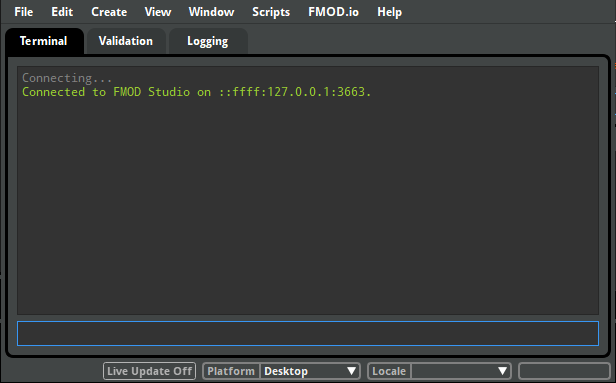
Commands can also be run using the built-in terminal interface. The console window can be opened by selecting "Window > Console" in the menu bar or by using the shortcut key combination Control+0 on Windows or ⌘+0 on Mac. This opens the console window, which contains the terminal tab. You can type commands directly into this:
25.3 Scripting examples
25.3.1 Creating and Deleting an Event
Using the managed object API, along with the studio.project.create(entityName) function, allows you to create objects within the project. For example, to create a new event in the root folder of the project:
var myEvent = studio.project.create("Event");
myEvent.name = "My New Event";
myEvent.folder = studio.project.workspace.masterEventFolder;
And to delete the newly created event:
studio.project.deleteObject(myEvent);
25.3.2 Checking the Tool Version
Studio provides the studio.version script object which allows you to check the tool version. It is good practice to check the tool version before installing script functionality. For example:
if (studio.version.productVersion == 2 && studio.version.majorVersion >= 2) {
    // add menu bar items
}
25.3.3 Modifying the Global Context
When Studio loads script within your Javascript files, it executes within its own scope. This means that if you declare a function called foo(), you will still not be able to call foo() directly from the shell interface. To register functions that can be called globally, you must attach them to the global context. For example:
var global = this;
global.foo = function() { alert("Hello!"); }
25.3.4 Custom Menus
The studio.menu module provides access to menu bar items and functionality. The script below demonstrates using this module to do the following:
- Creating menu items that execute a function when selected.
- Binding a menu item to a key combination.
- Conditionally enabling a menu item.
- Creating a separator between menu items.
- Checking a menu item with a checkmark.
- Using a function from the studio.window module to display what is currently selected in the active window, in this case the browser.
- Dynamically creating a submenu.
studio.menu.addMenuItem({
    name: "Greetings\\Say Hello",
    execute: function() { alert("Hello"); },
    keySequence: "Ctrl+H",
});

studio.menu.addMenuItem({
    name: "Greetings\\Say Bye",
    execute: function() { alert("Bye"); },
    isEnabled: false,
});

studio.menu.addMenuItem({ name: "Greetings\\----" }); // use all '-' characters to create a separator

studio.menu.addMenuItem({
    name: "Greetings\\Say Checked",
    execute: function() { alert("Checked toggled"); this.isChecked = !this.isChecked; },
    isChecked: true,
});

studio.menu.addMenuItem({
    name: "Greetings\\Advanced\\Say what's Selected",
    execute: function() { alert(studio.window.browserCurrent()); },
    isVisible: function() { return studio.window.browserCurrent(); }
});

studio.menu.addMenuItem({
    name: "Greetings\\Dynamic Submenu",
    subMenuItems: function() {
        var items = [];
        for (var i=0; i < 4; i++) {
            items.push({
                name: "#" + i,
                execute: function() { alert("Well hello there " + this.name); },
            });
        }
        return items;
    },
});
25.3.5 Custom Save & Build Menu Item
The following script demonstrates creating a menu item that, when executed, saves and builds the current project.
studio.menu.addMenuItem({ name: "Save and Build", execute: function buildAndCopy() {
    studio.project.save();
    studio.project.build();
    alert("Save and Build complete!");
}});
25.3.6 Setting Master Volume
The following script demonstrates accessing the project's master bus and setting its volume:
var masterBus = studio.project.workspace.mixer.masterBus;
masterBus.volume = -2;
25.3.7 Selecting an Event and Setting Timeline Position
The following script demonstrates, given an event's GUID, opening the event in the event editor, and scrubbing to a specific cursor position on the event's [timeline]. To test this, you can retrieve the GUID of an event in your project by right-clicking on it in the event editor and selecting "Copy GUID", and replacing the placeholder GUID assigned to eventGUID with the copied GUID.
var eventGUID = "{aabe5118-c144-4dc3-839a-ff52a2b49162}";
var timelinePos = 2.3;

var event = studio.project.lookup(eventGUID);
if (event) {
    studio.window.navigateTo(event);
    event.timeline.setCursorPosition(timelinePos);
    alert("Opened and scrubbed: " + event.name);
} else {
    alert("Could not find event: " + eventGUID);
}
25.3.8 Adding a New Audio Track to the Selected Event
The following script adds a new audio track to the event currently selected in the events browser, prompting the user for its name, and connecting it to an event and the event's master track.
studio.menu.addMenuItem({ name: "Add Audio Track",
    isEnabled: function() { var event = studio.window.browserCurrent(); return event && event.isOfExactType("Event"); },
    execute: function() {
        var trackName = studio.system.getText("Name of new group track:", "New Track");
        if (trackName) {
            var event = studio.window.browserCurrent();
            var track = studio.project.create("GroupTrack");
            track.mixerGroup.output = event.mixer.masterBus;
            track.mixerGroup.name = trackName;
            event.relationships.groupTracks.add(track);
        }
    },
});
25.3.9 Creating a Multi-Instrument and Adding Instruments to its Playlist
The following script demonstrates creating a function that, when passed an event, adds a multi-instrument to its master track, and adds already existing audio files named "sound1.wav" and "sound2.wav" to the multi-instrument's playlist.
function createMulti(event) {
    var track = event.masterTrack;
    var multiInstrument = track.addSound(event.timeline, 'MultiSound', 0, 10);

    var singleInstrument1 = studio.project.create('SingleSound');
    singleInstrument1.audioFile = studio.project.workspace.masterAssetFolder.getAsset("sound1.wav");
    singleInstrument1.owner = multiInstrument;

    var singleInstrument2 = studio.project.create('SingleSound');
    singleInstrument2.audioFile = studio.project.workspace.masterAssetFolder.getAsset("sound2.wav");
    singleInstrument2.owner = multiInstrument;
}
25.3.10 Sort Audio Files After They're Imported
The following script demonstrates using the audioFileImported callback to have Studio automatically call a function when an audio file is imported. In this case, the function postAudioFileImported will take the first three letters of the imported audio file as a prefix for sorting, and, if a folder with the prefix exists, moves the imported audio file to that folder.
function postAudioFileImported(audioFile) {
    // Tries to put 'abc_sound.wav' into the 'ABC' folder if it exists

    // Parse newly imported audio file's name for prefix
    var filePath = audioFile.assetPath.split('/');
    var fileName = filePath[filePath.length - 1];
    var prefix = fileName.substr(0, 3).toUpperCase();
    // If file isn't imported to root folder, it doesn't need to be sorted - return early
    if (filePath.length !== 1) {
        console.log(fileName + " isn't in the root folder -- file imported to a specific folder, sorting will be skipped");
        return;
    } else {
        console.log(fileName + " has the prefix " + prefix);
    }

    // Iterate over master assets folder for sub-folder that matches prefix
    var folderFound = false;
    var assets = studio.project.workspace.masterAssetFolder.assets;
    for (var i=0; i < assets.length; i++) {
        if (assets[i].isOfType("EncodableAsset")) {

            var folderName = assets[i].assetPath.split('/');
            folderName = folderName.join('');

            if (folderName === prefix) {
                console.log("Folder found that matches prefix " + prefix + " -- moving file to matching folder");
                folderFound = true;
                audioFile.setAssetPath(assets[i].assetPath + fileName);
                return;
            }
        }
    }
    if (!folderFound) {
        console.log("No folder matching prefix " + prefix + " found -- leaving imported file as is");
    }
}
// Connect our function to the audioFileImported callback
studio.project.audioFileImported.connect(postAudioFileImported);